
How to Connect OneDrive to Media Library
Learn how to sync your OneDrive files with Nuelink so you can import and manage your social media content without ever leaving the platform.
In this Guide:
Why Connect OneDrive to Your Nuelink Media Library?
What Media Types Can You Upload from OneDrive?
How to Connect OneDrive to Media Library
How to Upload Media from OneDrive to Media Library
What Can You Do With Your Media Once It's Uploaded?
OneDrive Frequently Asked Questions and Troubleshooting
What is OneDrive?
OneDrive is Microsoft's cloud storage service, included with every Microsoft 365 account. It lets you store files, photos, videos, documents, and more in the cloud and access them from any device, anywhere. If your team already organises creative assets in OneDrive, connecting it to Nuelink means your files are always just a few clicks away whenever you're creating or scheduling social media posts.
Why Connect OneDrive to Your Nuelink Media Library?
Connecting OneDrive removes the friction from your content creation workflow. Instead of downloading files to your device and re-uploading them manually, you can pull media directly from your cloud storage in seconds. Here's what you gain:
Save time on uploads. Skip the download-then-upload cycle entirely. Select files from OneDrive and import them into Nuelink instantly.
Centralise your assets. Keep all your social media content images, videos, and PDFs in one accessible Media Library inside Nuelink, ready to use across collections and posts.
Work seamlessly with your team. Use files that have already been shared with you in OneDrive without any extra handoff steps or file transfers.
Post faster. When you're scheduling content, your media is already waiting in the library, so you can attach it and go.
What Media Types Can You Upload from OneDrive?
Nuelink supports a wide range of file types from OneDrive, giving you full flexibility for your content:
- Images: JPG, PNG.
- Videos: MP4, MOV.
You can also select multiple files at once and upload them to your Media Library in a single batch, ideal for importing a full set of campaign assets in one go.
How to Connect OneDrive to Media Library
-
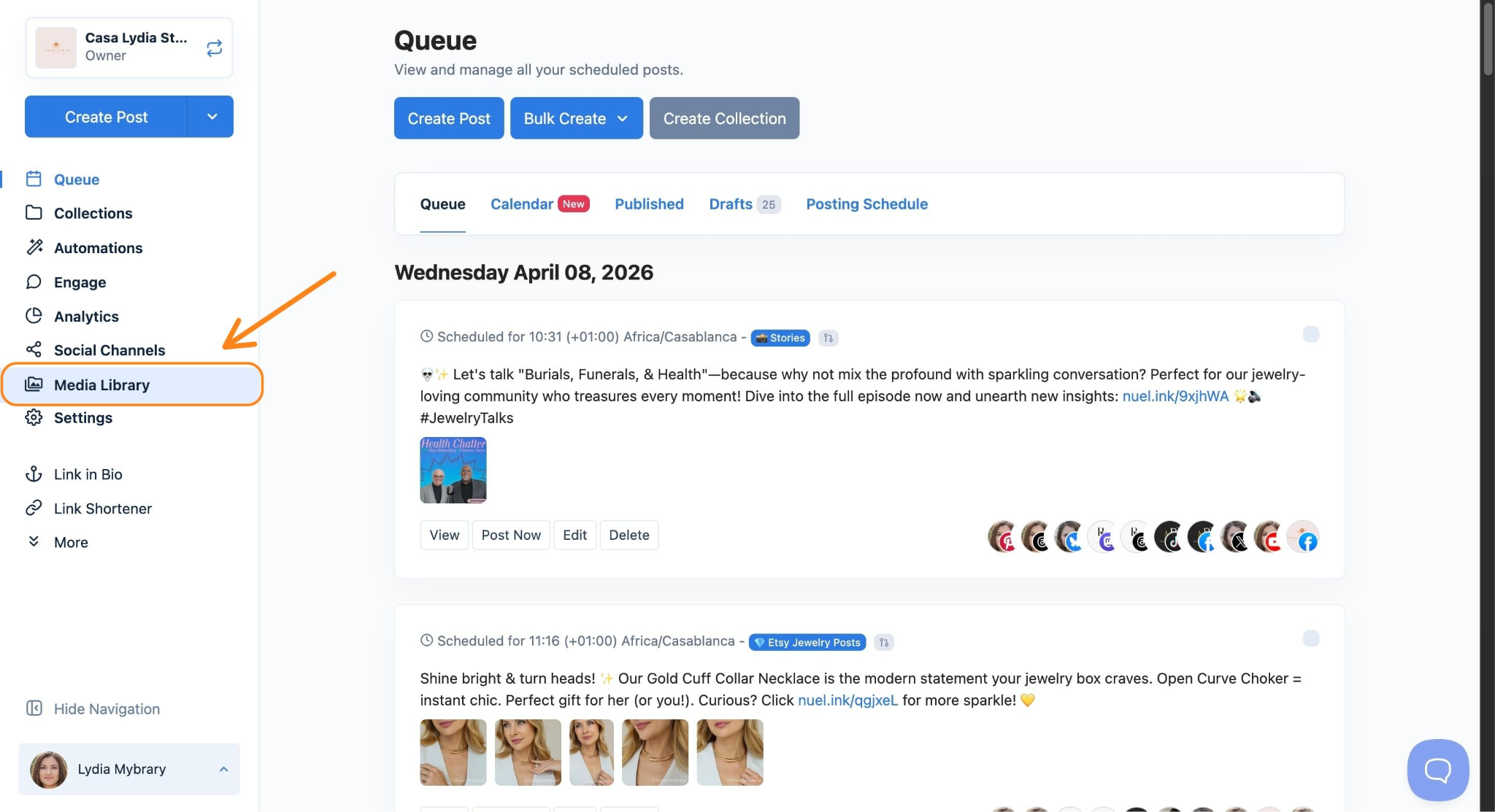
Open the Media Library
In the left-hand sidebar of your Nuelink dashboard, click Media Library.
-
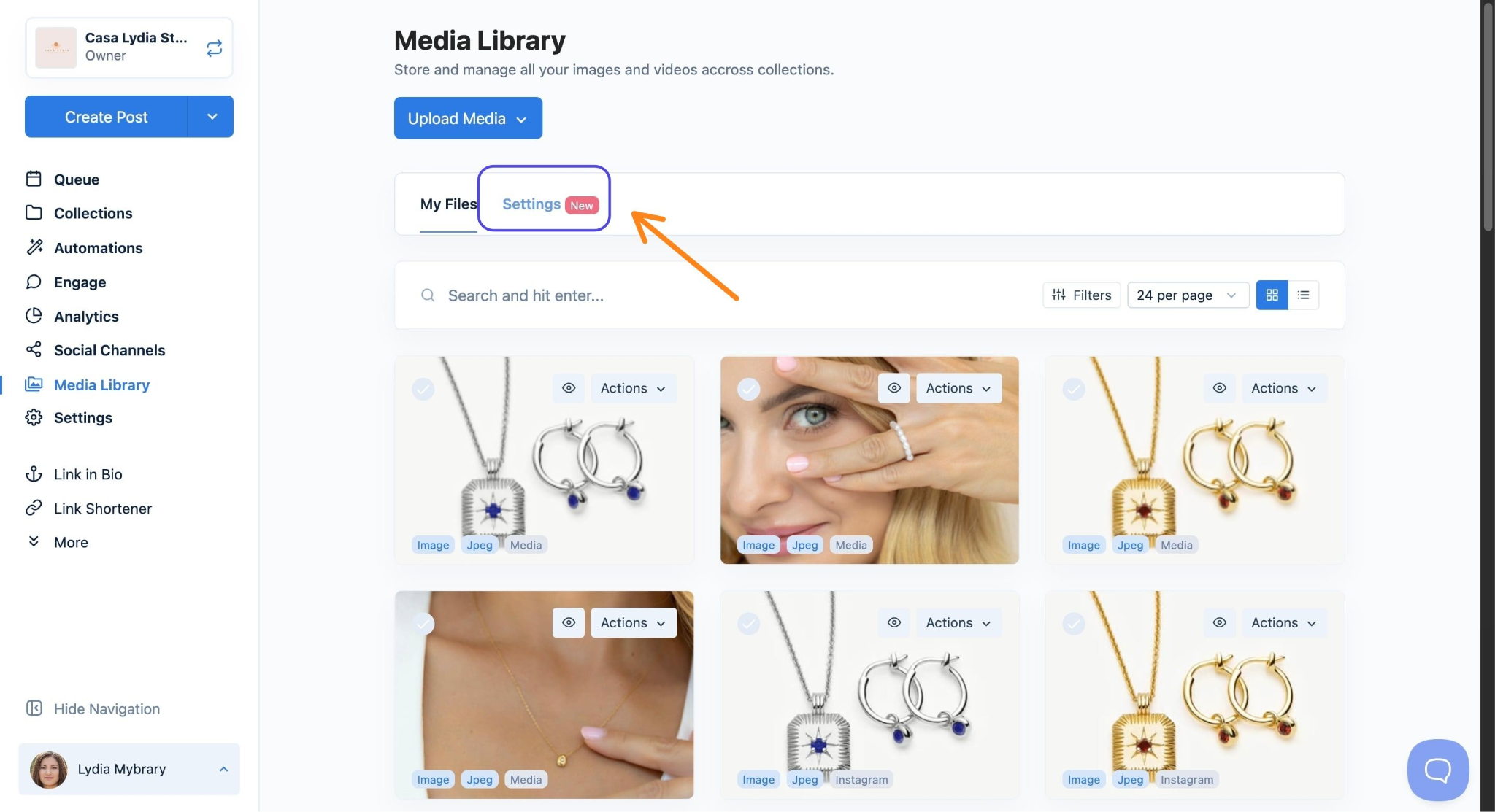
Go to the Settings Tab
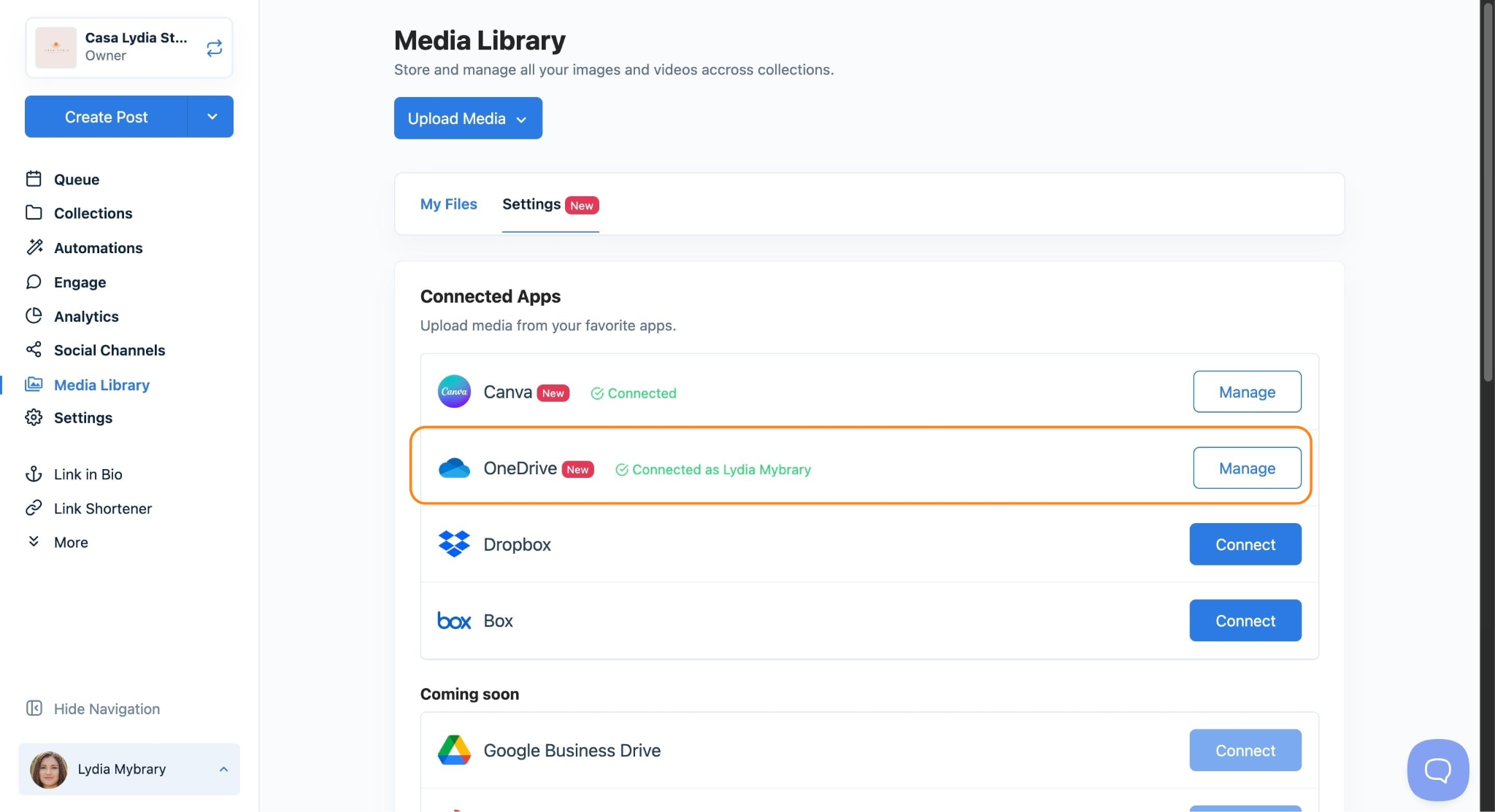
Inside the Media Library, click the Settings tab. You'll see a Connected Apps section listing the platforms you can link to Nuelink, including Canva, OneDrive, Dropbox, and Box.
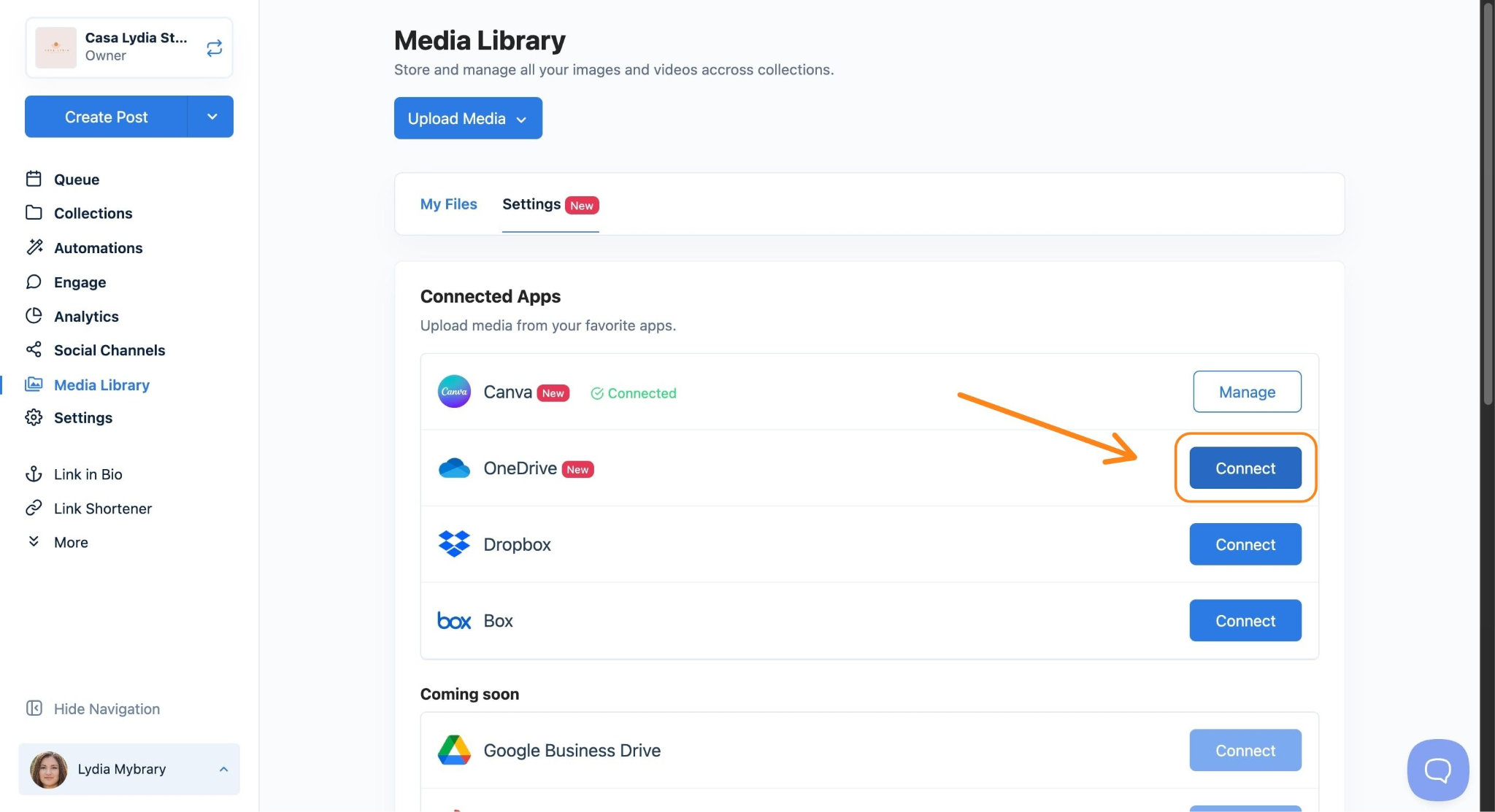
- Click "Connect" Next to OneDrive
Find OneDrive in the Connected Apps list and click the Connect button beside it.
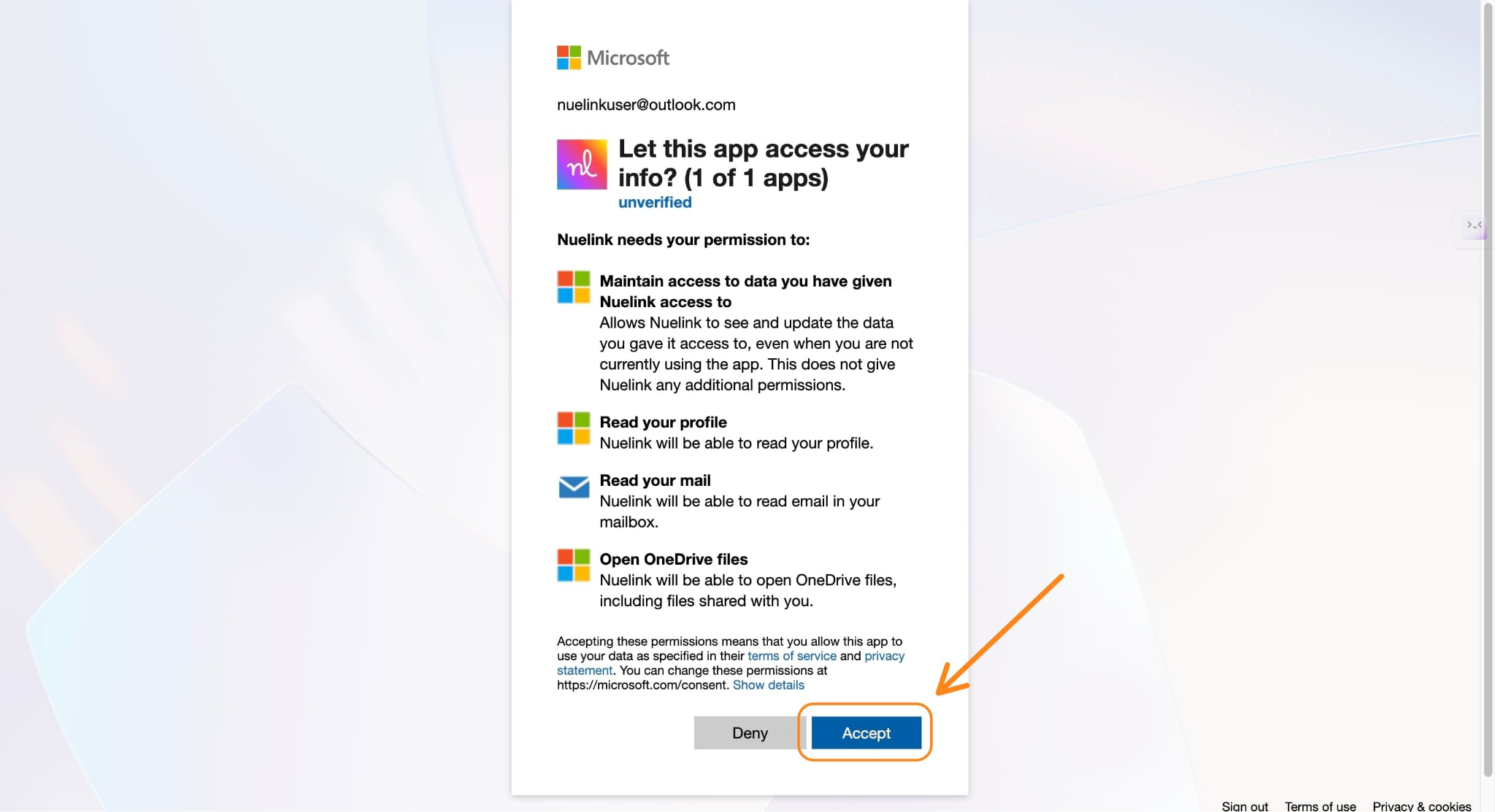
- Accept the Permissions Request
Microsoft will ask you to grant Nuelink permission to read your profile and access your OneDrive files, including files shared with you. Review the permissions and click Accept to authorise the connection.
Note: Nuelink only accesses the specific files you choose to import; it does not gain access to your entire OneDrive automatically.
- Connection Confirmed!
Once authorised, you'll see OneDrive · Connected as [your name] with a green checkmark in the Settings panel. Your OneDrive is now linked. You can click Manage at any time to disconnect or reconfigure the integration.
How to Upload Media from OneDrive to Media Library
-
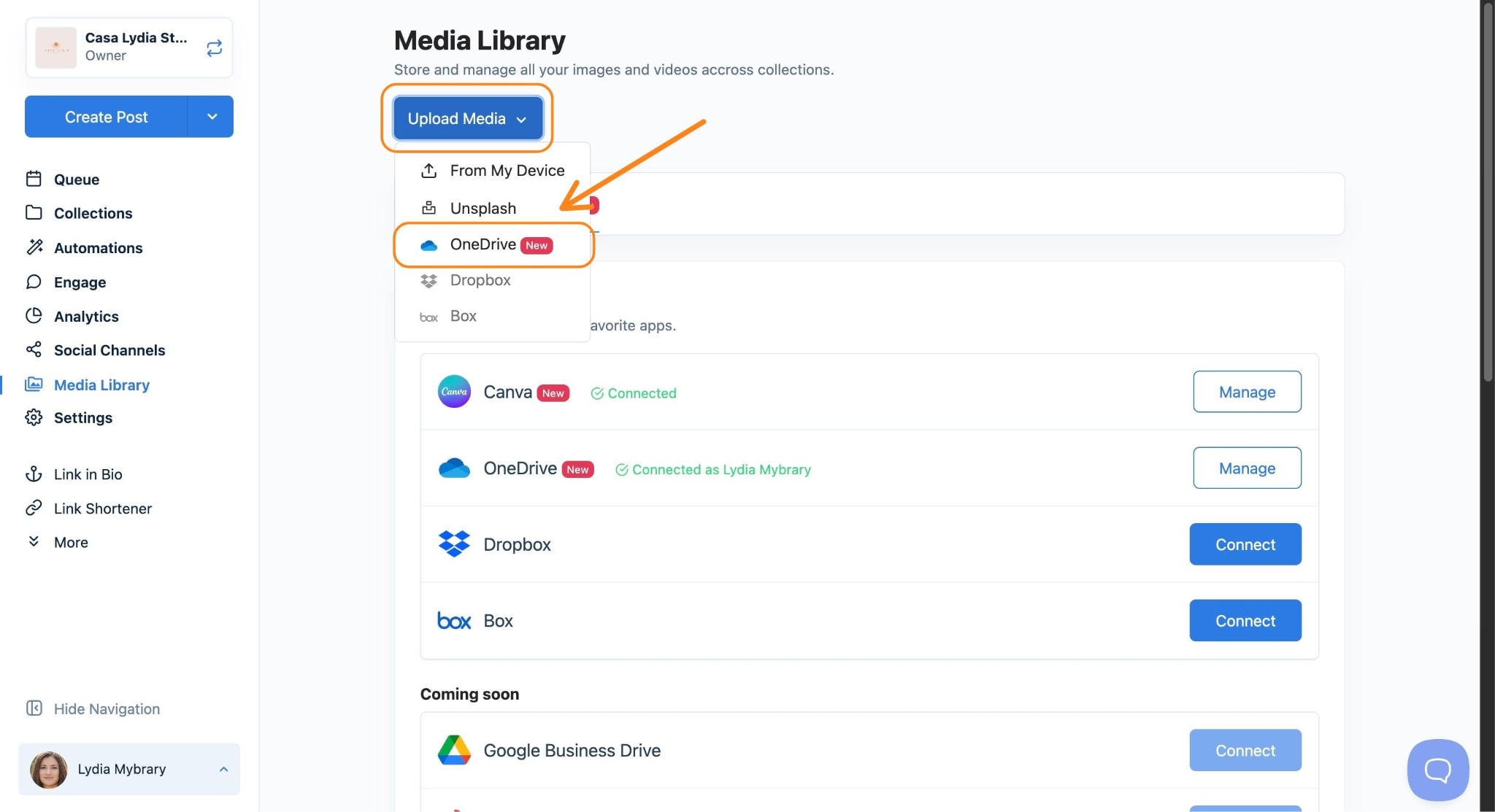
Click "Upload Media" and Select OneDrive
From your Media Library, click Upload Media. From the dropdown menu that appears, select OneDrive to open the OneDrive file picker.
-
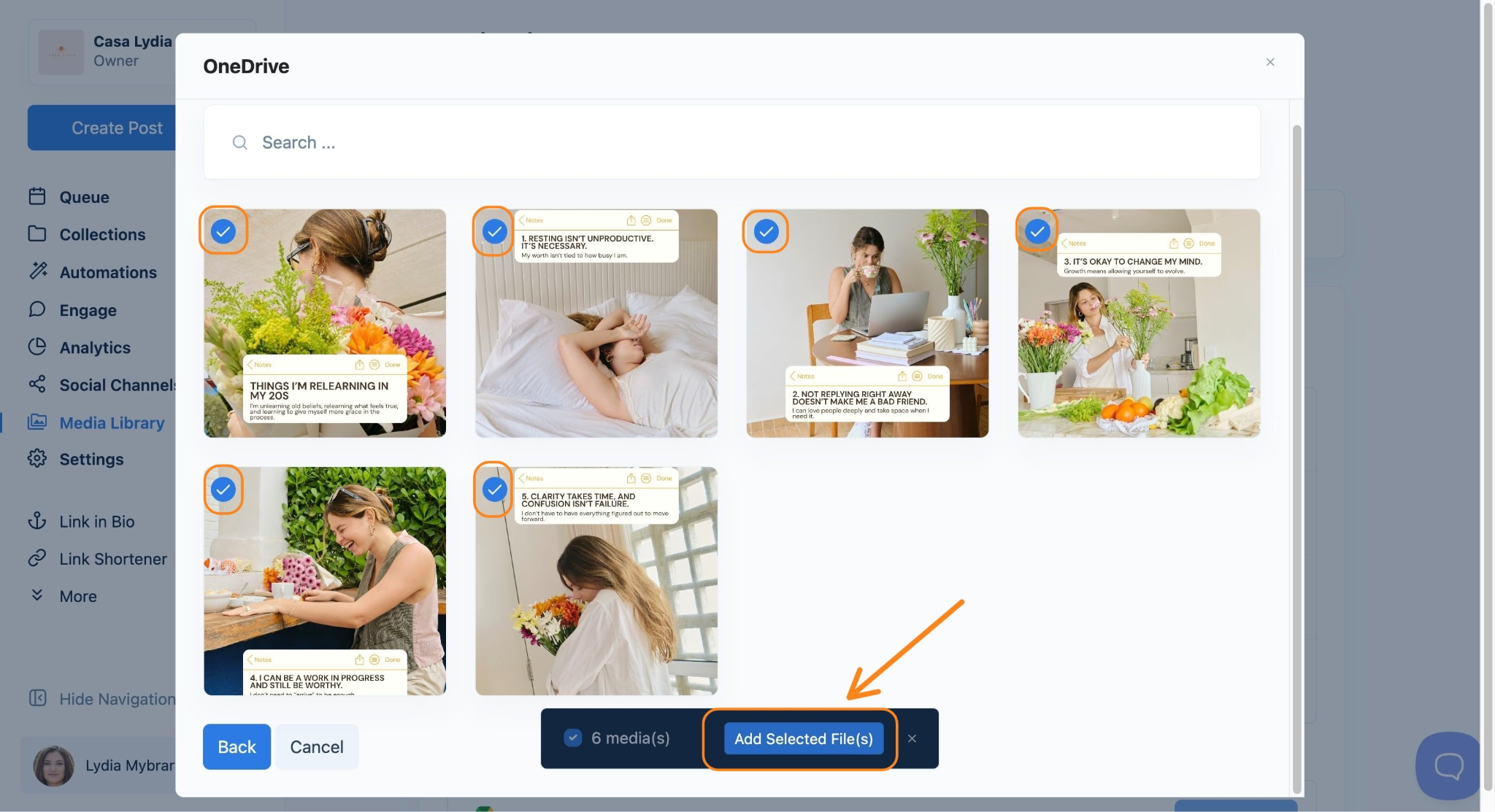
Select Your Files
Browse your OneDrive folders and choose the files you want to import. You can select multiple files at once, images, and videos. When you're ready, click Add Selected File(s).
-
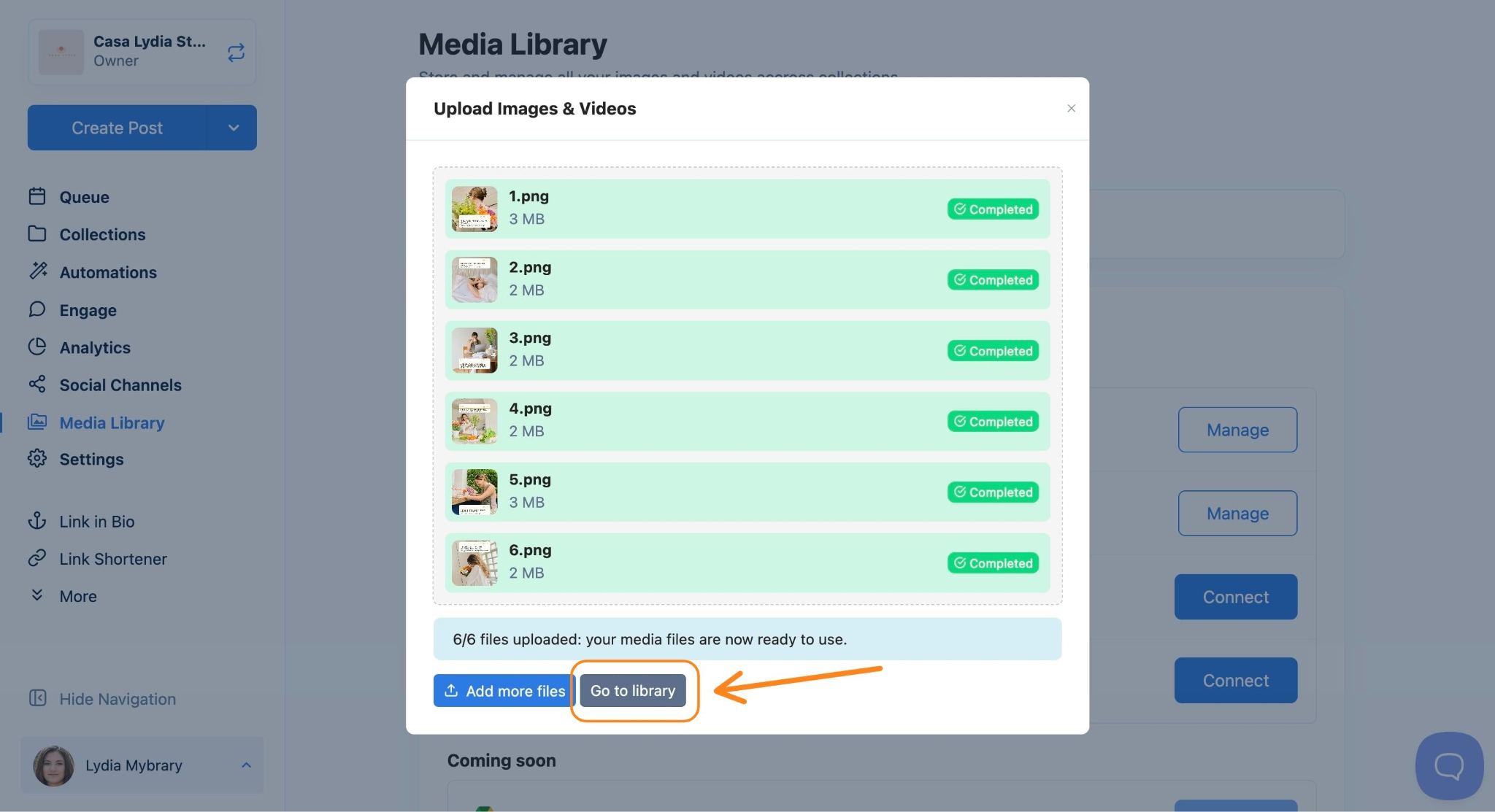
Go to Your Library
Nuelink will upload your selected files and display a progress screen showing each file's status. Once all files show Completed, click Go to Library to view them in your Media Library and start using them in your posts.
What Can You Do With Your Media Once It's Uploaded?
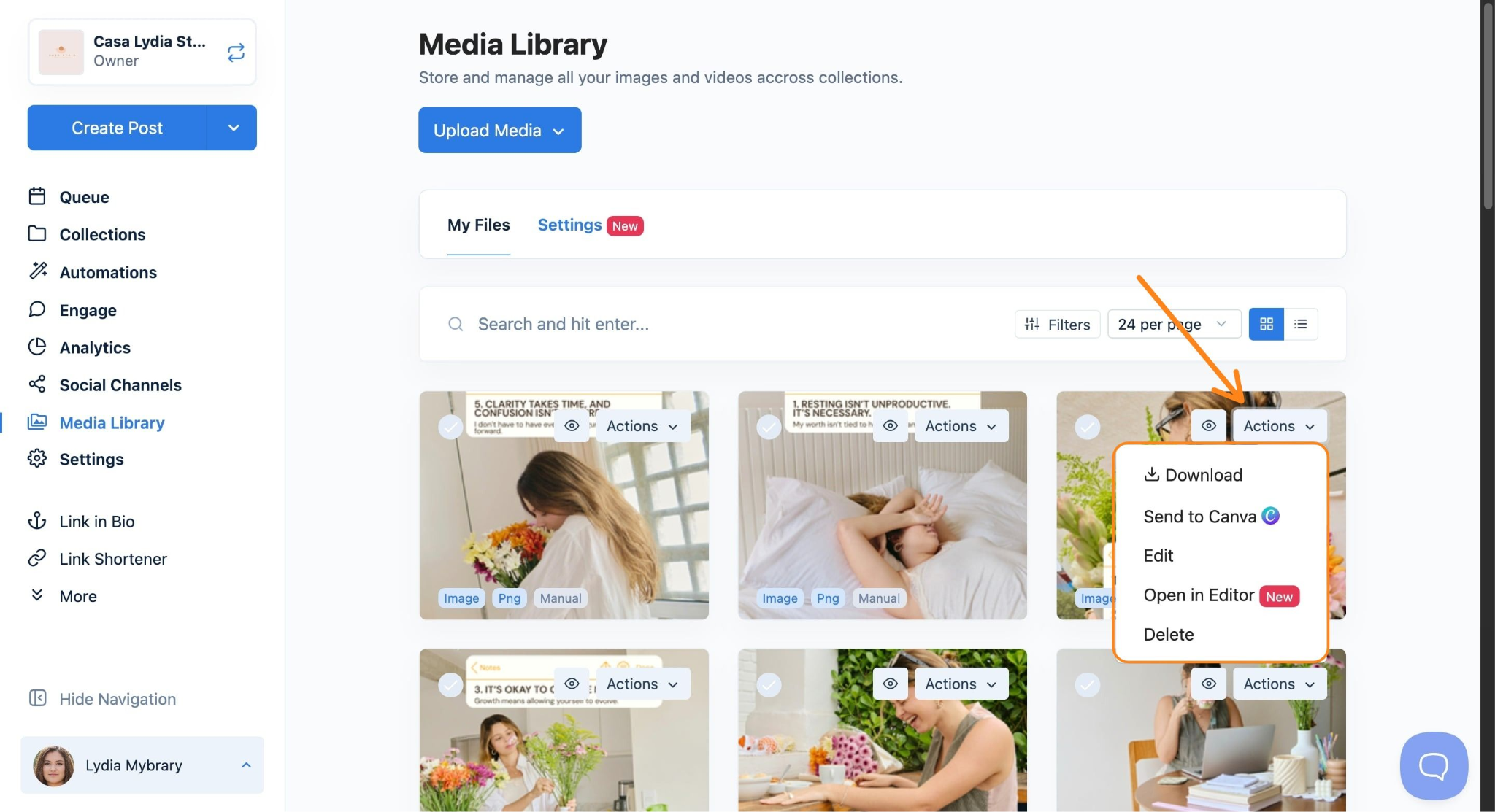
Once your files are in the Media Library, click the Actions button on any file to manage it. The following options are available:
Send to Canva. Open the file directly in Canva to design or customise it before publishing.
Open in Editor. Edit the media inside Nuelink's built-in post editor without leaving the platform.
Download. Save a copy of the file to your device at any time.
Edit. Update the file's name or details within the library.
Delete. Remove files you no longer need to keep your Media Library organised.
Pro tip: After uploading from OneDrive, you can immediately attach any file to a new or scheduled post. Just open Create Post, select your media from the library, and you're ready to publish.
OneDrive Frequently Asked Questions and Troubleshooting
Do I need a paid Microsoft 365 plan to connect to OneDrive?
No. OneDrive comes with a free Microsoft account and includes 5GB of storage at no cost. Any OneDrive account, free or paid, can be connected to Nuelink. If you're on a Microsoft 365 plan, you'll have more storage available, but the connection process is the same regardless of your plan.
Can I connect more than one OneDrive account to Nuelink?
Currently, Nuelink supports one connected OneDrive account per brand. If you need to import files from a different account, you would need to disconnect the existing one first via Media Library → Settings → Manage, then reconnect with the other account.
Will my OneDrive files sync automatically with Nuelink?
No. The connection does not create an automatic sync. Files are imported each time you manually use the Upload Media → OneDrive option. This keeps your Media Library tidy and ensures only the files you intentionally select are added.
Does uploading a file to Nuelink remove it from OneDrive?
No. Importing a file into Nuelink creates a copy in your Media Library. Your original files remain untouched in OneDrive.
Can I see folders shared with me by teammates in OneDrive?
Yes. When Nuelink requests access to OneDrive, it includes permission to open files shared with you. You should be able to browse shared folders inside the OneDrive file picker when uploading.
Is there a file size limit for uploads from OneDrive?
File size limits depend on your Nuelink plan. If a file fails to upload, check that it falls within the media size limits for your account. For videos in particular, large files may take longer to process or may need to be compressed before uploading.
The Microsoft permissions window isn't opening when I click Connect.
This is usually caused by a browser pop-up blocker. Check your browser's address bar for a blocked pop-up notification and allow pop-ups from Nuelink. Then try clicking Connect again. If the issue persists, try a different browser or disable any ad-blocking extensions temporarily.
I clicked Accept, but OneDrive still shows as "not connected" in Nuelink.
Try refreshing the Settings page after accepting the permissions. If it still shows disconnected, log out of Nuelink and log back in, then check the Connected Apps panel again. If the problem continues, contact the Nuelink support.
I can't see certain folders or files in the OneDrive file picker.
Make sure you're logged into the correct Microsoft account, the one that contains the files you're looking for. If you're trying to access files shared with you by a colleague, confirm that the sharing permissions on their end are still active. Files in the Recycle Bin or files with restricted sharing settings may not appear.
My upload is stuck or showing as failed.
First, check your internet connection. If the connection is stable, try refreshing the page and attempting the upload again. For large video files, allow extra time for processing. If a specific file keeps failing, check that the file format is supported and that the file isn't corrupted by opening it directly in OneDrive first.
I disconnected OneDrive. Will my already-uploaded files be removed from the Media Library?
No. Files that have already been imported into your Nuelink Media Library will remain there even after you disconnect OneDrive. Disconnecting only removes the ability to import new files from OneDrive going forward.
OneDrive was connected before, but now shows as disconnected.
Microsoft access tokens expire periodically for security reasons. If your OneDrive connection drops unexpectedly, simply go to Media Library → Settings and click Connect next to OneDrive to re-authorise the integration. This is a quick process, and your existing media will not be affected.
Finally, if you happen to have any additional inquiries, please read through our Frequently Asked Questions section.
Check our Help Center for further tutorials. We offer several videos and articles on effectively getting the maximum benefit out of Nuelink.
Still need help? Contact Us.