
What are the Scheduling Options on Nuelink?
When creating a post in Nuelink, you have five ways to control when and how your content goes out. This article explains each scheduling option so you can always choose the one that fits your workflow.
Scheduling Options:
Scheduling FAQs and Troubleshooting
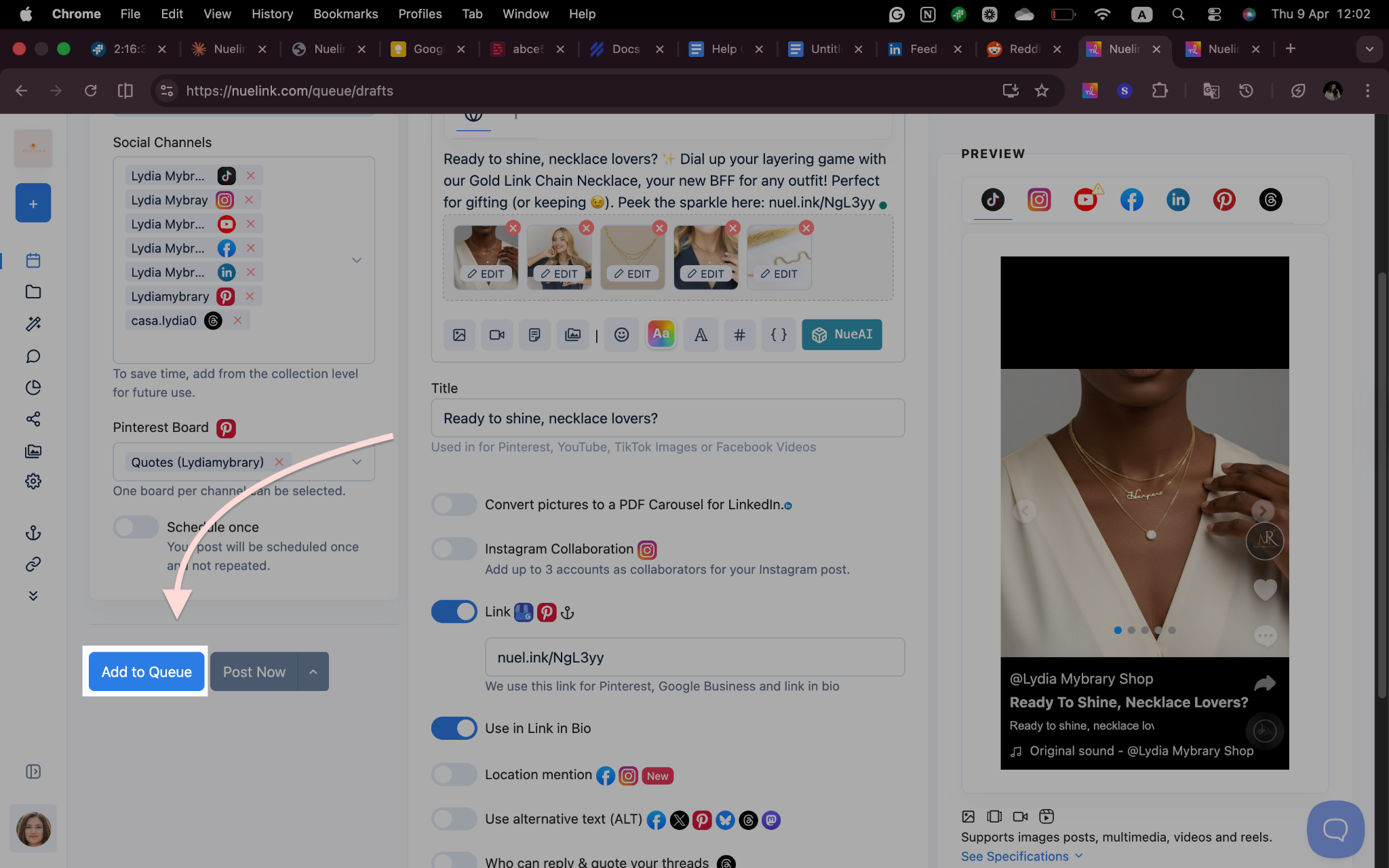
Add to Queue
Your post will be added to your collection's posting schedule. Nuelink will post it for the appropriate time slots. It depends on the queue order settings you've set up for the collection. Please keep in mind that you have to have your posting times set in a collection beforehand.
How it works:
- Create your post and select your social channels as usual.
- Click Add to Queue, and your post gets added to your posting queue as needed.
- Nuelink publishes it automatically at the right time slot.
When to use it:
- You want to maintain a consistent posting cadence without manually setting times.
- You're batching content creation, writing multiple posts at once, and letting the queue handle the timing.
- You don't need a post to go out at a specific time, just regularly.
Post Now
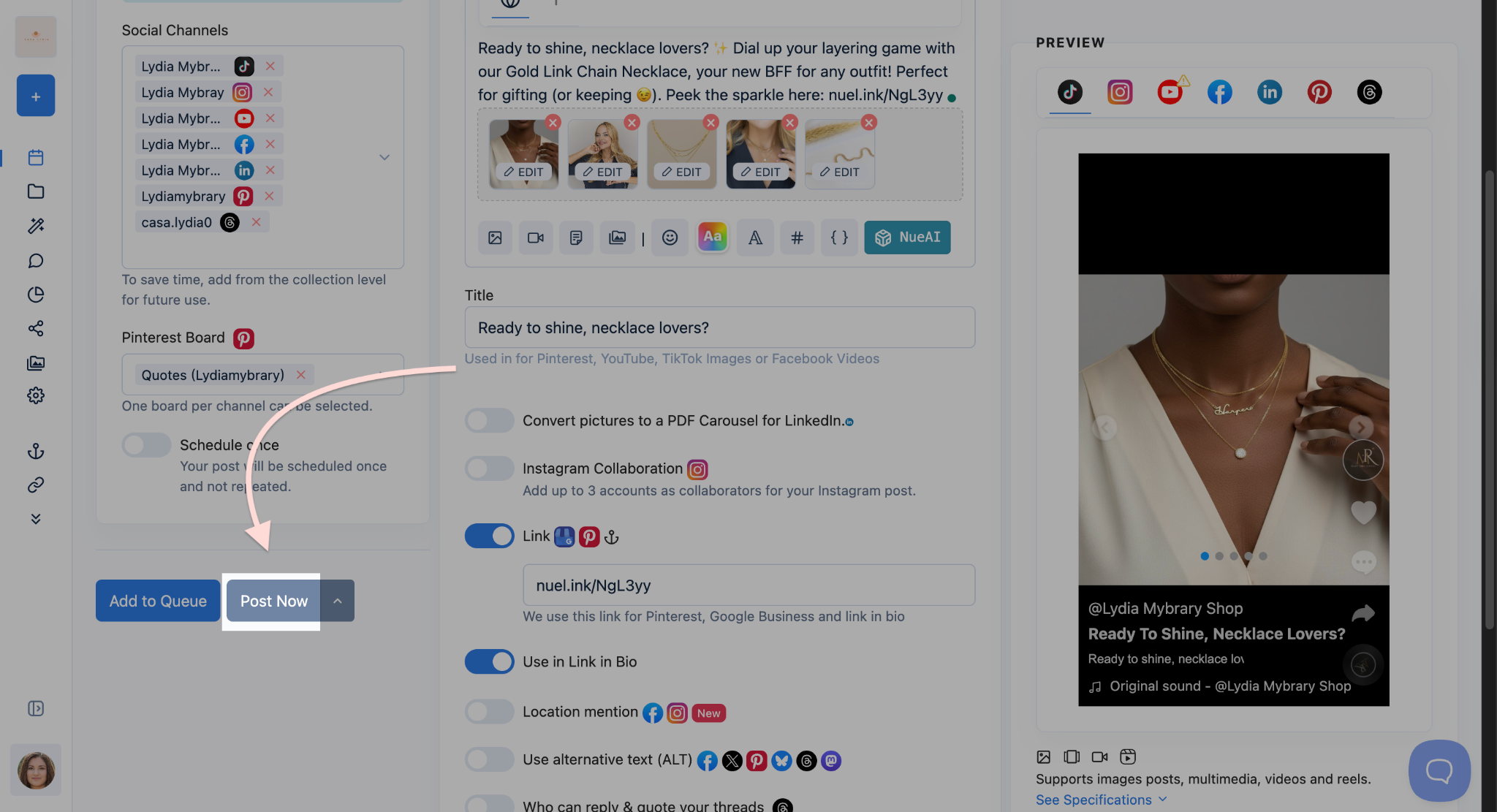
This publishes your content immediately to all selected social channels, no scheduling, no waiting. As soon as you confirm, the post goes live.
How it works:
- Finish creating your post and select your target social channels.
- Click Post Now.
- Nuelink instantly publishes the post across all selected platforms.
When to use it:
- You're sharing breaking news, a limited-time offer, or a trending topic.
- You want to respond to a real-time event or conversation.
- You've already prepared the content, and the timing is right to publish now.
Note: Post Now bypasses your queue entirely. It won't affect the timing of other queued posts, and it won't count against a time slot.
Save as Draft
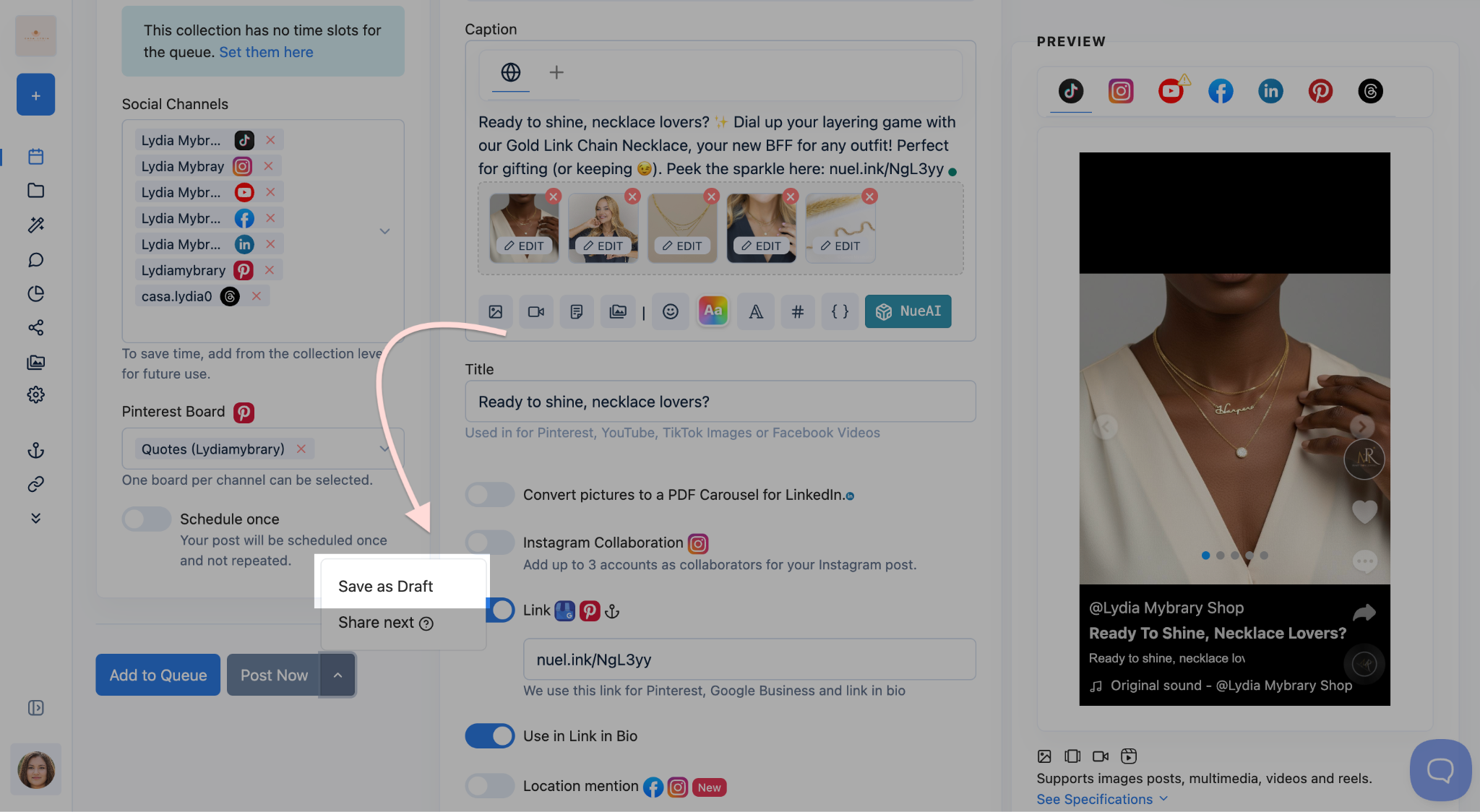
It stores your post without scheduling or publishing it. You can come back to it later to edit, review, or approve it before it goes anywhere.
How it works:
- Create your post (full content, images, channels, as much or as little as you have).
- Click Save as Draft.
- Find the post in your Drafts section anytime to continue editing or schedule it.
When to use it:
- You're still working on the caption, visuals, or messaging and need to come back later.
- You want a teammate or manager to review the post before it's published.
- You're preparing content in advance but haven't decided on the timing yet.
Share Next
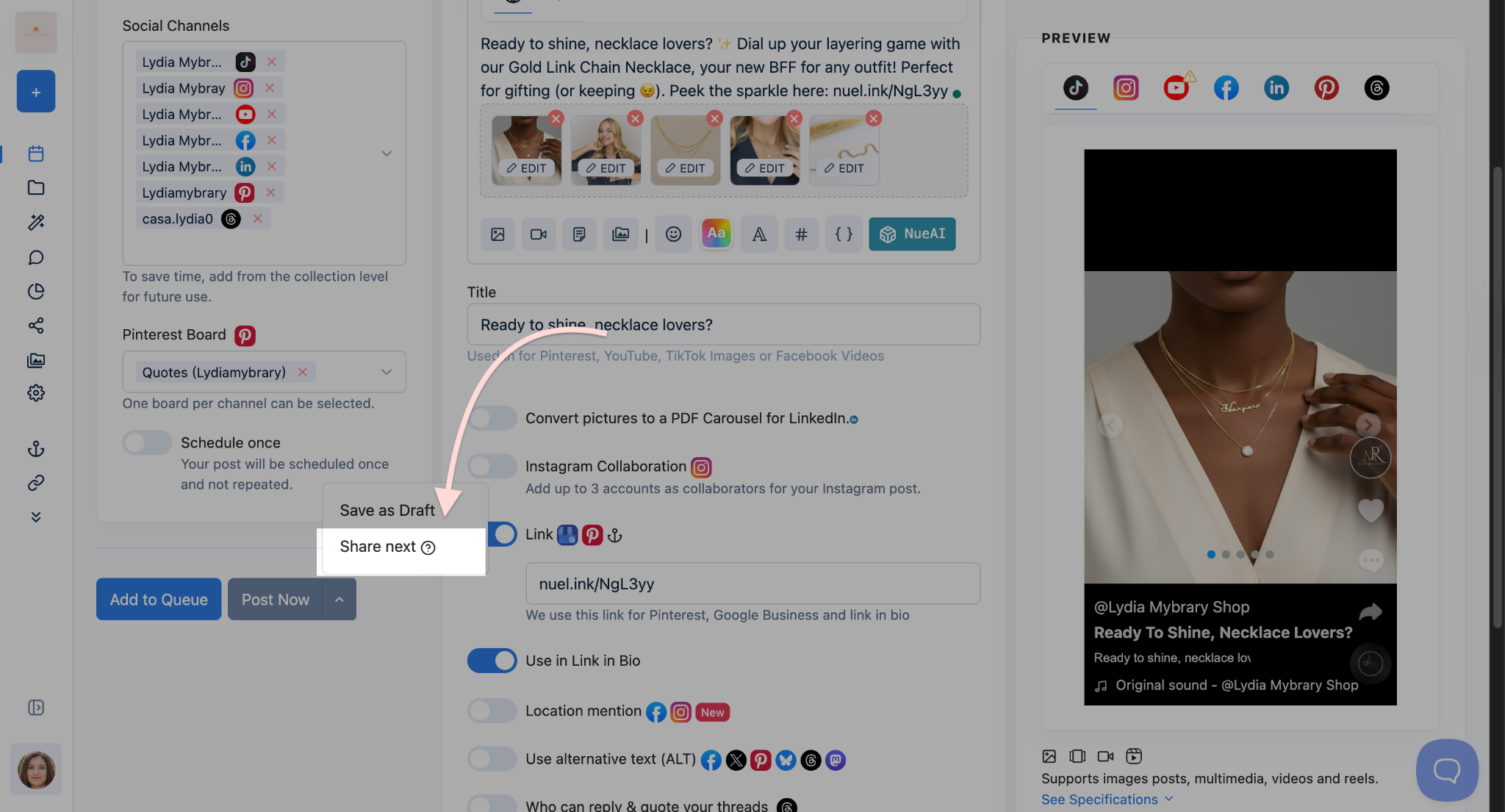
This moves your post to the front of the queue. Instead of waiting behind all other queued posts, it will be the very next one published at the upcoming time slot.
How it works:
- Create your post as usual.
- Select Share Next from the scheduling options.
- Your post jumps to the top of the queue and publishes at the next available time slot.
When to use it:
- A post is time-sensitive, but you still want it to go out at your next scheduled slot (not immediately).
- You have a long queue and want to prioritize a specific post without disrupting your overall schedule.
- You want to skip the line without manually reordering your queue.
Schedule Once
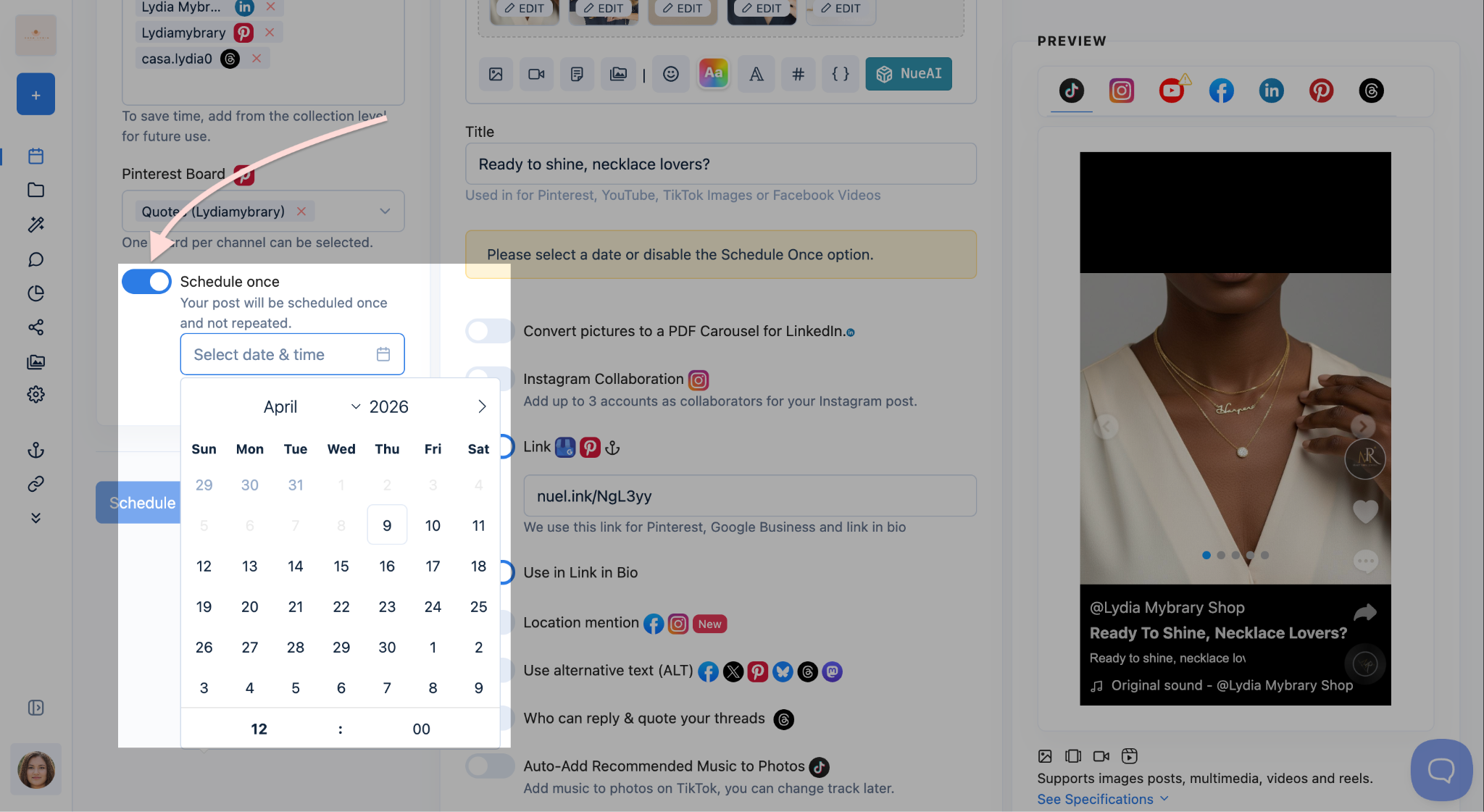
Schedule Once lets you pick an exact date and time for your post to be published. Unlike Add to Queue, this post is tied to a specific moment, not a recurring time slot. It will publish once at the time you choose and will not repeat(will not be included if you have the evergreen queue enabled).
How it works:
- Create your post and select your social channels.
- Enable the Schedule Once toggle.
- Pick your desired date and time from the date picker.
- Confirm, Nuelink will publish the post at exactly that time.
When to use it:
- You're promoting an event, product launch, or sale that starts at a specific time.
- You want precise control over publish time without relying on queue slots.
- You're coordinating a post to go out alongside an email campaign or announcement.
Scheduling FAQs and Troubleshooting
Can I change the scheduling option after I've already saved a post?
Yes. Open the post from your queue or drafts, and you'll be able to change how it's scheduled before it goes live. If a post has already been published, it can't be rescheduled.
What's the difference between Add to Queue and Schedule Once?
Add to Queue fits your post into your collection's recurring time slots, great for consistent, ongoing posting. Schedule Once is for a specific moment in time that you define manually. Use Schedule Once when timing really matters; use Add to Queue when you just want content to go out regularly.
What's the difference between Share Next and Post Now?
Share Next puts your post at the front of the queue so it publishes at your next scheduled time slot. Post Now skips the queue entirely and publishes immediately. If you need it out within minutes, use Post Now. If the next slot is soon enough, Share Next keeps things more orderly.
Can I schedule a post to multiple platforms at different times?
Not within a single post, each post publishes to all selected channels at the same time. If you need platform-specific timing, create separate posts for each channel.
Do drafts expire?
No, drafts are saved indefinitely in your collection. They won't be published or deleted automatically they stay in your Drafts section until you decide what to do with them.
Will Post Now interrupt or delay my queued posts? No. Post Now is completely independent of your queue. It publishes immediately without touching the order or timing of anything already queued.
Can I use Schedule Once for a post that's also in a collection?
Yes. A Schedule Once post belongs to a collection but is not tied to that collection's recurring time slots. It will publish at the exact time you set, just once.
My queued post isn't publishing.
- Check that your collection has time slots configured. Go to your collection settings and confirm that at least one time slot is set up.
- Make sure the social channel connected to the collection is still authorized. A disconnected account will prevent publishing.
- Check if the post has any errors flagged missing required fields (like a title for Pinterest or YouTube) can block publishing.
- Make sure your collection is activated and not paused.
I clicked Post Now, but the post didn't go live.
- Verify that at least one social channel is selected on the post.
- Check if there's a connection issue with the platform. Sometimes a social network experiences a temporary outage wait a few minutes and try again.
- Make sure your account permissions are still active. Go to your connected channels and re-authenticate if needed.
My ‘Schedule Once’ post didn't publish at the right time.
- Double-check the timezone set in your Nuelink account settings. If your account timezone doesn't match your intended timezone, posts may go out at unexpected times.
- Confirm the post didn't have a validation error that prevented it from publishing. Check the post's status in your scheduled posts list.
I can't find my draft.
- Drafts are stored per-collection. Make sure you're looking inside the correct collection.
- Use the search or filter options to locate it by post content or creation date.
Share Next didn't move my post to the front.
- If another post was added with Share Next after yours, it may have taken the top spot. Only one post can be "next" at a time the most recently prioritized one wins.
- Confirm your collection has an upcoming time slot. If no future slots are scheduled, the post will wait until one is created.
My post was published to some channels but not others.
- This usually means one or more of your connected accounts had an authorization issue at the time of publishing. Go to your connected channels, identify any that show an error or disconnected status, and re-authenticate them.
- Check each platform's individual status some networks have API rate limits or temporary restrictions that can affect delivery.
Finally, if you happen to have any additional inquiries, please read through our Frequently Asked Questions section.
Check our Help Center for further tutorials. We offer several videos and articles on effectively getting the maximum benefit out of Nuelink.
Still need help? Contact Us.