
How to Delete a Collection in Nuelink, And What It Means for Your Content?
This guide explains what collections are in Nuelink, what happens when you delete one, and how to delete a collection safely. Whether you're cleaning up old campaigns or reorganizing your content, you'll find everything you need here.
Note: Deleting a collection is a permanent action. Make sure you've reviewed all posts inside the collection before proceeding.
Table of Contents
- What Is a Collection?
- What Happens When You Delete a Collection?
- How to Delete a Collection
- FAQs & Troubleshooting
What Is a Collection?
A Collection is Nuelink's way of organizing your social media content. Think of it as a folder for your posts. You can group content by theme, campaign, or content type (for example, "Blog Posts", "Promotions", or "Weekly Tips").
Each collection can have its own:
- Default channels: the social accounts it posts to
- Time slots: the days and times posts go out
- Queue settings: how posts are recycled or paused
Collections are the heart of how Nuelink manages your publishing schedule, so deleting one is a meaningful action.
What Happens When You Delete a Collection?
When you delete a collection, all posts inside it are permanently deleted too. This includes:
- Scheduled posts that haven't gone out yet
- Draft posts saved in the collection
- Queued posts waiting to be published
⚠️ This action cannot be undone. Posts that have already been published to your social channels will remain live on those platforms. Deleting a collection only removes the content from Nuelink, not from your social media profiles.
Before you delete, consider:
- Moving important posts to another collection first
- Pausing the collection instead, if you just want to stop posting temporarily
- Noting down any content you may want to reuse later
How to Delete a Collection
- Log in to your Nuelink account and make sure you're in the correct brand workspace (visible in the top navigation).
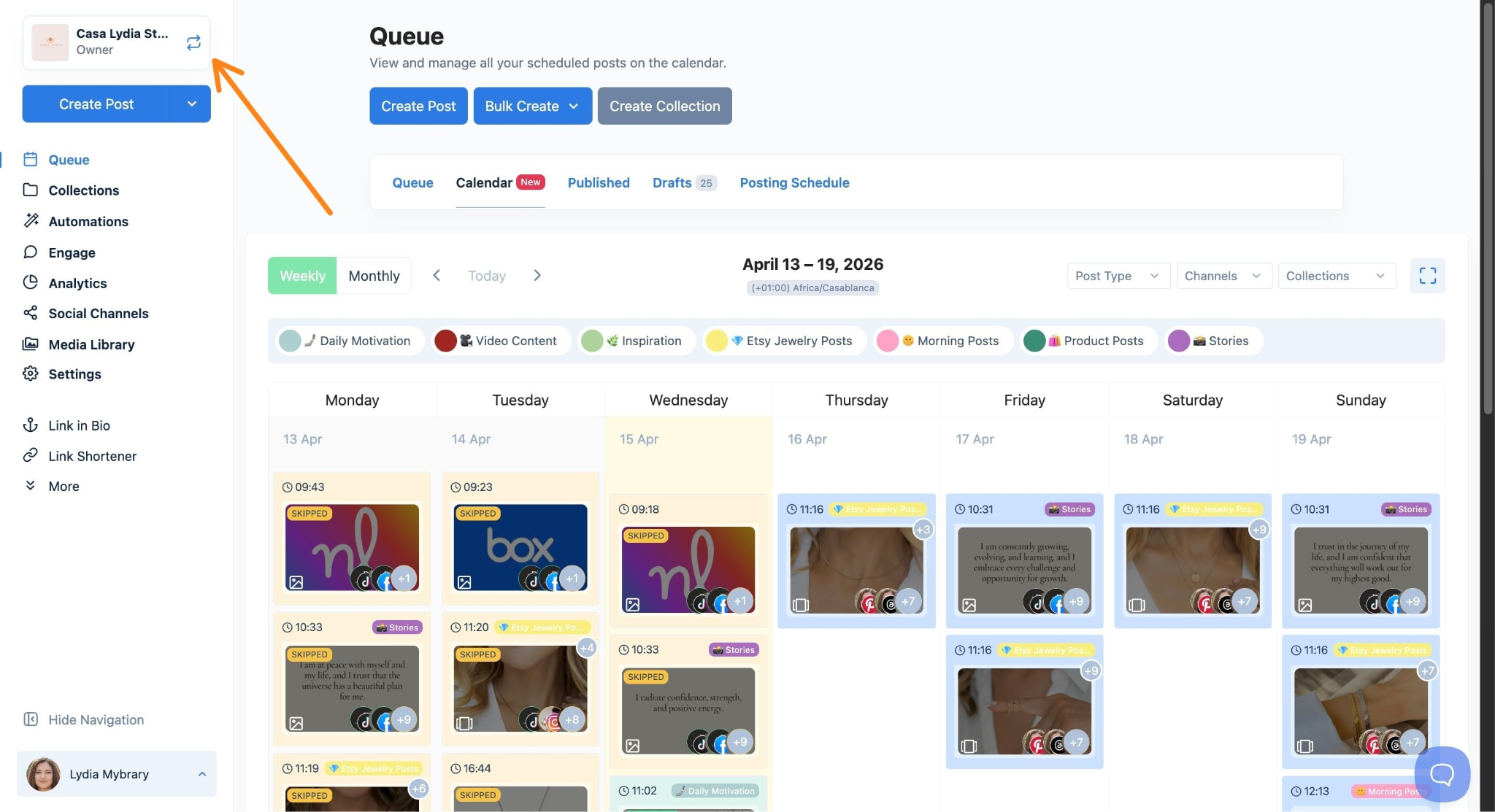
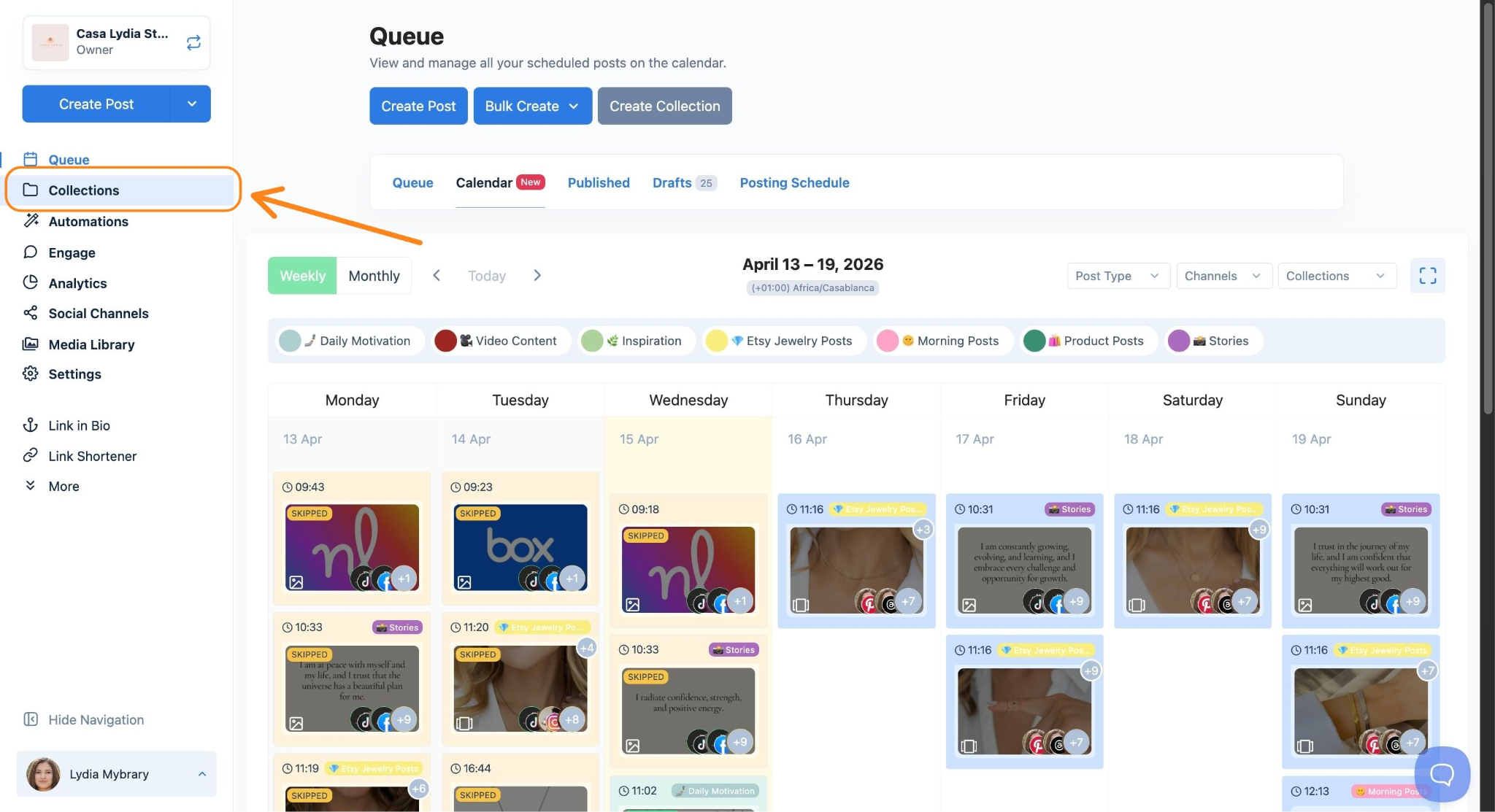
- In the left sidebar, click on Collections.
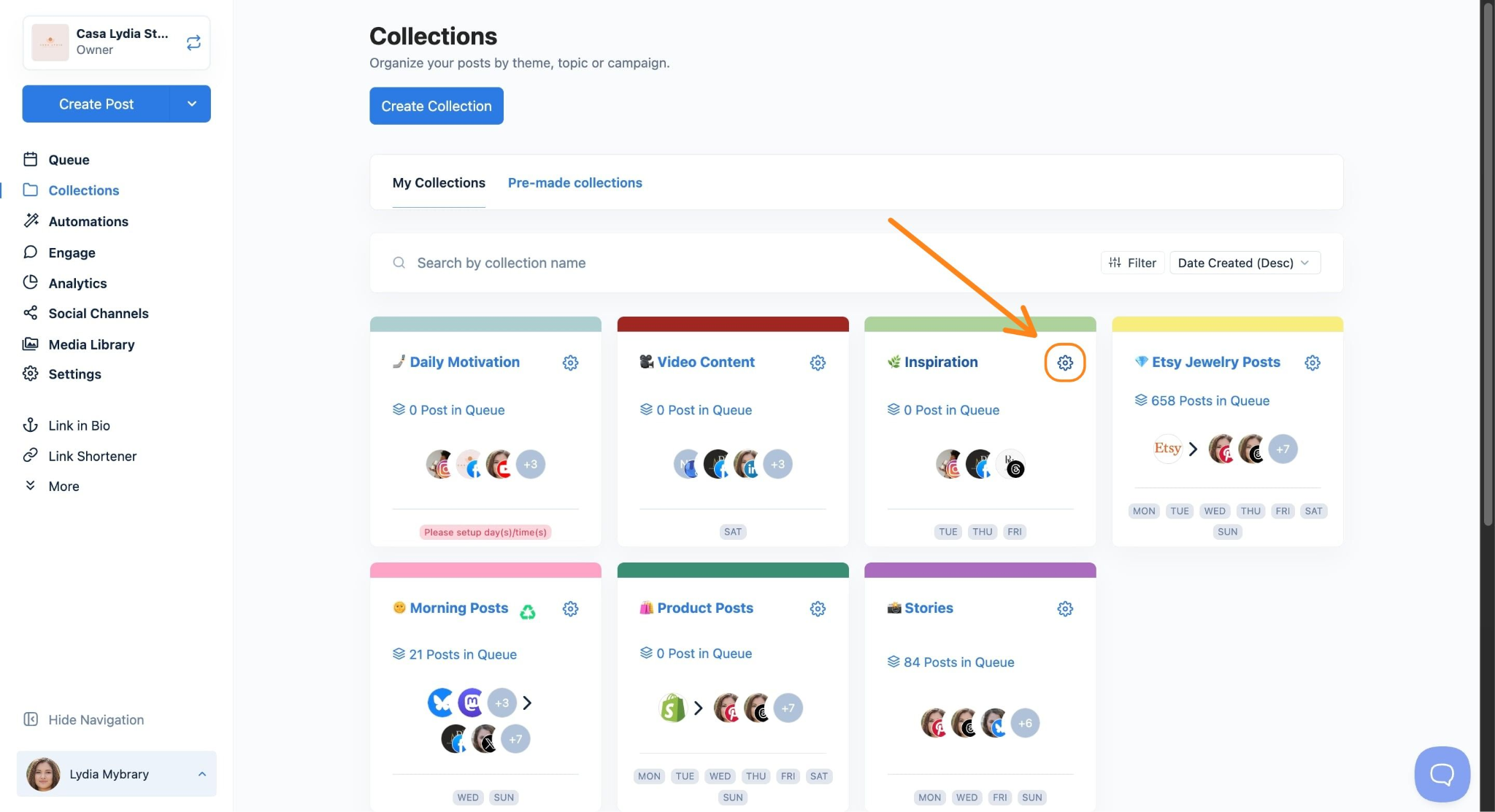
- Find the collection you want to delete. Then click the settings icon ‘⚙️’ next to the collection name.
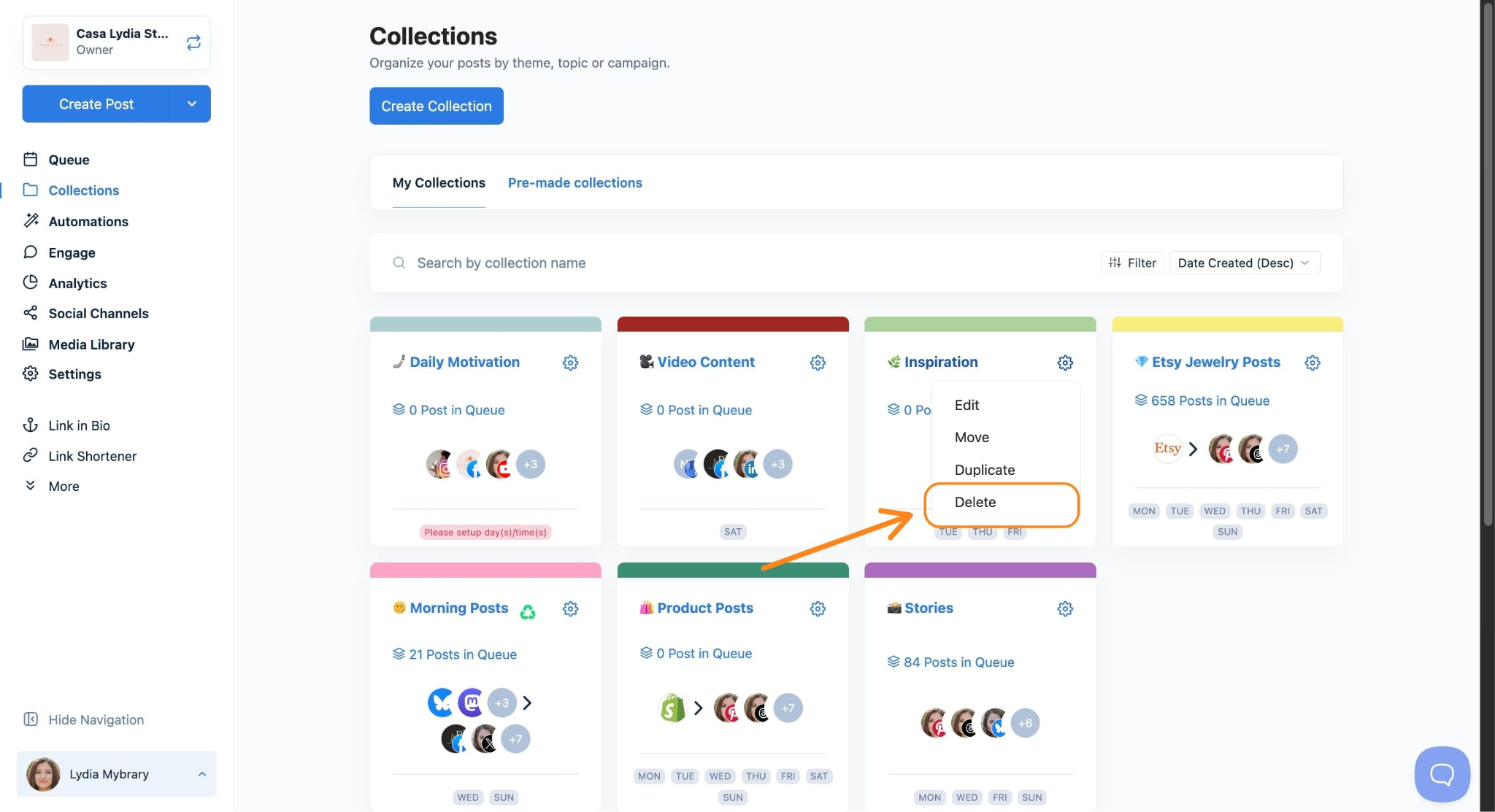
- From the dropdown menu, select Delete Collection.
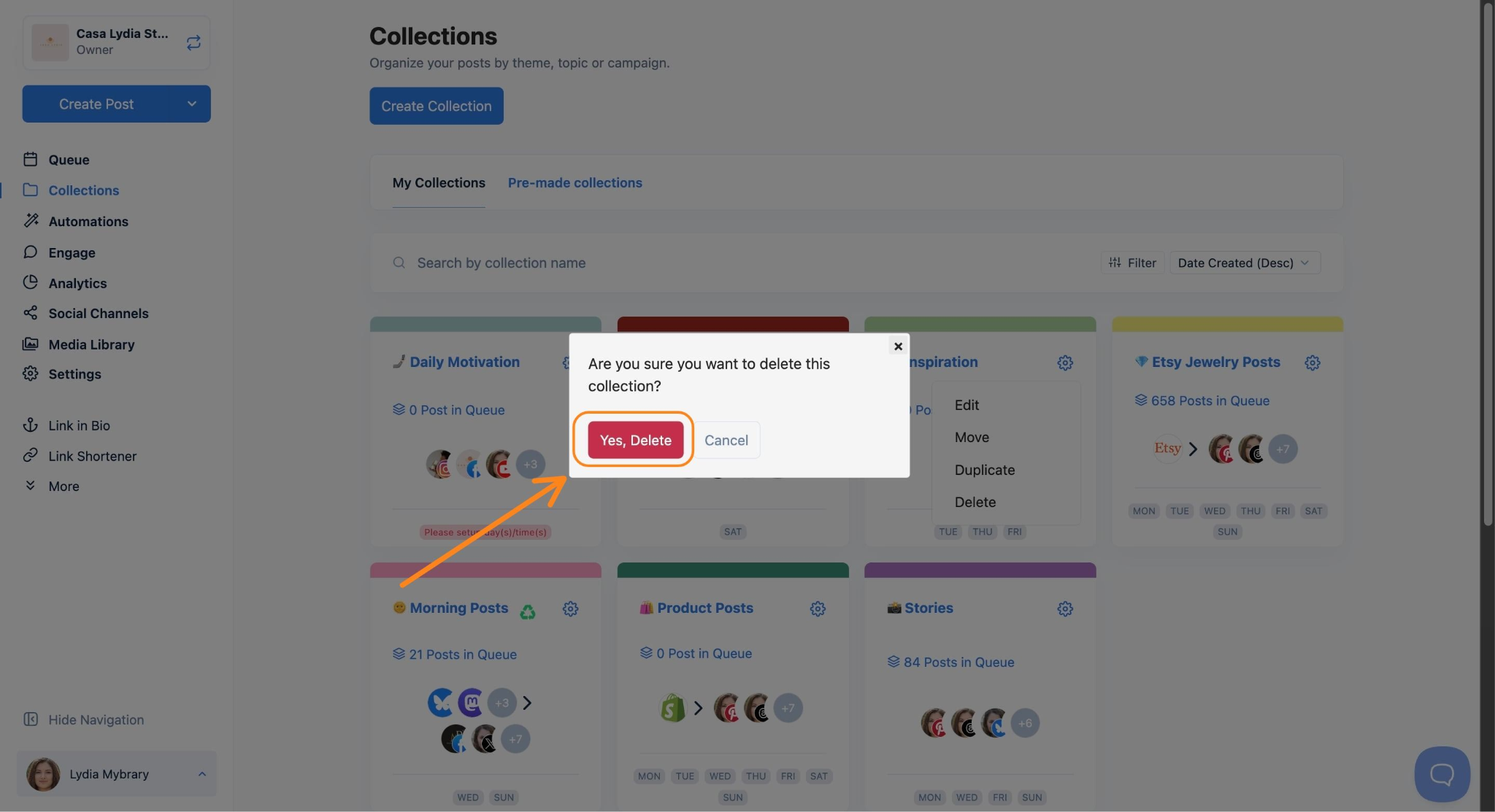
- A confirmation dialog will appear. Reminder: All posts inside this collection will also be deleted. Click Yes, Delete to proceed.
- The collection will disappear from your list. All posts that were inside it have been permanently removed from Nuelink.
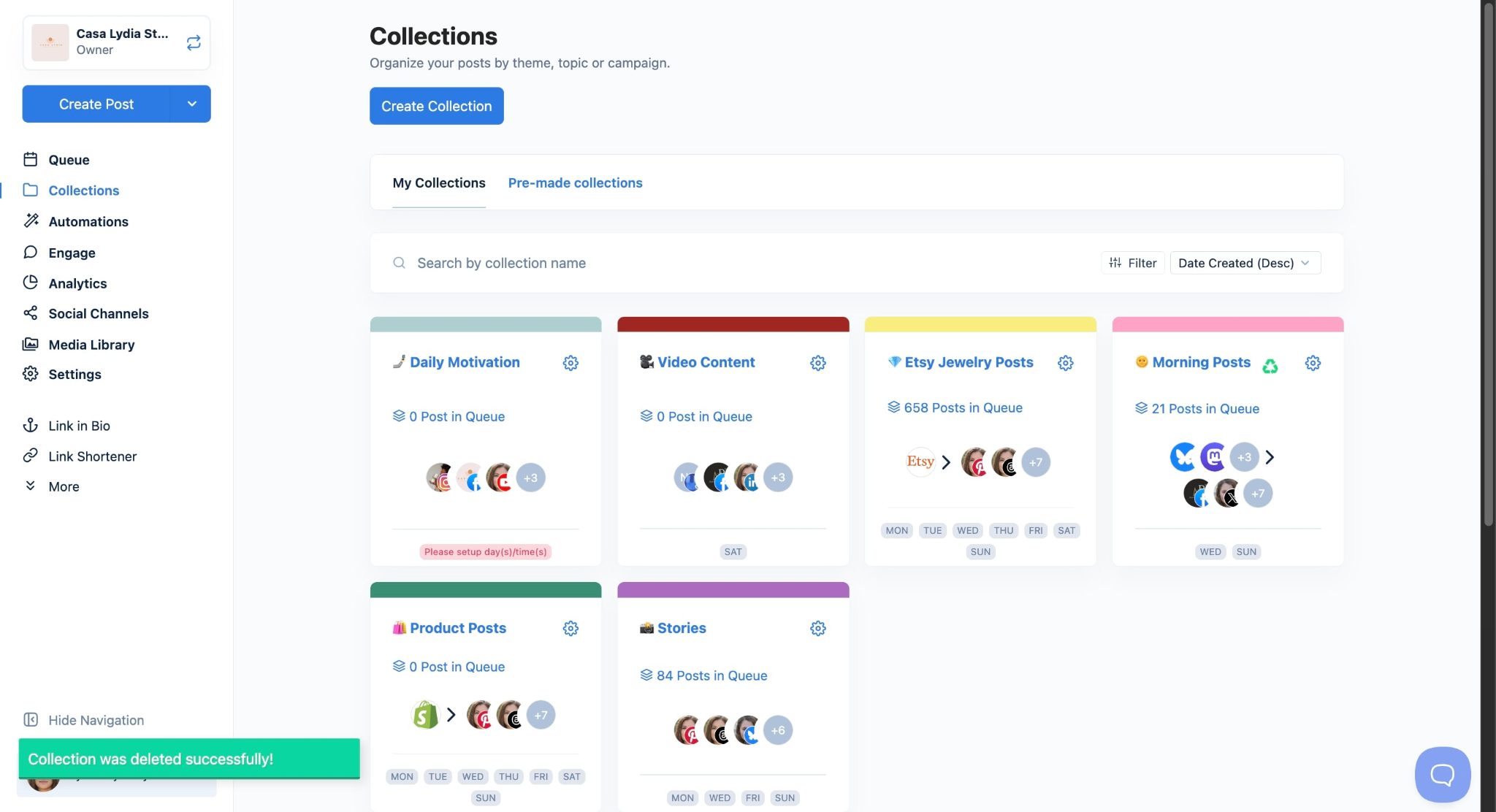
That's it! The collection has been removed. Any posts that were already published to your social channels are still live there and are not affected.
FAQs
Will deleting a collection remove my already-published posts from social media?
No. Posts that have already gone live on your social channels (Instagram, Facebook, etc.) will stay there. Deleting a collection only removes content from Nuelink. It does not affect what's already been published.
Can I recover a deleted collection?
Unfortunately, no. Deleting a collection is permanent and cannot be undone. We recommend reviewing all content inside the collection carefully before confirming the deletion.
What if I just want to stop posting from a collection temporarily?
You don't need to delete it! Instead, you can pause the collection's queue. This stops new posts from going out without deleting any content. You can resume it whenever you're ready.
Can I move posts to another collection before deleting?
Yes! Before deleting, open the collection, select the posts you want to keep, and move them to another collection. Once you've moved everything important, you can safely delete the empty collection.
Does deleting a collection affect my automations (like blog or e-commerce auto-posting)?
If your collection was connected to an automation (such as auto-posting from a Shopify store or RSS feed), deleting the collection will also remove that automation setup. You'll need to set up a new automation in a different collection if you still want that content posted.
Troubleshooting
I don't see a delete option when I click the three-dot menu.
Make sure you have the right permissions for that brand workspace. Only workspace owners and admins can delete collections. If you're a team member with limited access, contact your workspace owner to request the deletion.
The collection won't delete and shows an error.
Try refreshing the page and attempting the deletion again. If the issue persists, clear your browser cache or try a different browser. You can also reach out to Nuelink support for help.
I accidentally deleted a collection with important posts.
Unfortunately, deleted collections and their posts cannot be recovered from Nuelink. For future reference, consider pausing a collection instead of deleting it, or move posts you want to keep to another collection first.
After deletion, the collection still appears in my list.
This is usually a display refresh issue. Try reloading the page. The collection should no longer appear after a fresh load.