
How to Delete Published Posts from Nuelink
This guide shows you how to remove posts you've already published through Nuelink. You'll learn where to find them, how to delete them, and which platforms allow full deletion from Nuelink versus history-only removal. To follow this guide, you'll need a Nuelink account with at least one connected channel and posts already published.
Note: Deleting the posts from Nuelink cannot be undone. Some platforms don't allow 3rd party apps to delete posts from the platforms themselves; you can only delete them from the Nuelink History.
Table of Contents
Platforms That Allow Full Deletion
Nuelink can only manage posts that were originally published through Nuelink. Posts created directly on a platform must be deleted on that platform. Not every platform handles deletion the same way. The table below shows what happens when you delete a post in Nuelink, depending on the channel it was published to.
Warning: Full deletion is permanent. Once you confirm, the post is gone from both Nuelink and the platform, and there is no way to recover it.
Note: Instagram, Threads, and TikTok do not let third-party apps like Nuelink delete published posts. Deleting from Nuelink only clears the post from your Nuelink history. The post stays live on the platform. To remove a post on Instagram, Threads, or TikTok, open the platform's app or website and delete it there directly. After that, you can also remove it from your Nuelink history for a clean record.
|
Platform |
Deletion Behavior |
What Gets Removed |
|
Full deletion ✅ |
Removed from Nuelink and the platform |
|
|
Full deletion ✅ |
Removed from Nuelink and the platform |
|
| YouTube |
Full deletion ✅ |
Removed from Nuelink and the platform |
| X (Twitter) |
Full deletion ✅ |
Removed from Nuelink and the platform |
|
Full deletion ✅ |
Removed from Nuelink and the platform |
|
| Telegram |
Full deletion ✅ |
Removed from Nuelink and the platform |
| Mastodon |
Full deletion ✅ |
Removed from Nuelink and the platform |
| Bluesky |
Full deletion ✅ |
Removed from Nuelink and the platform |
|
History-only removal ❌ |
Removed from Nuelink history only |
|
| Threads |
History-only removal ❌ |
Removed from Nuelink history only |
| TikTok |
History-only removal ❌ |
Removed from Nuelink history only |
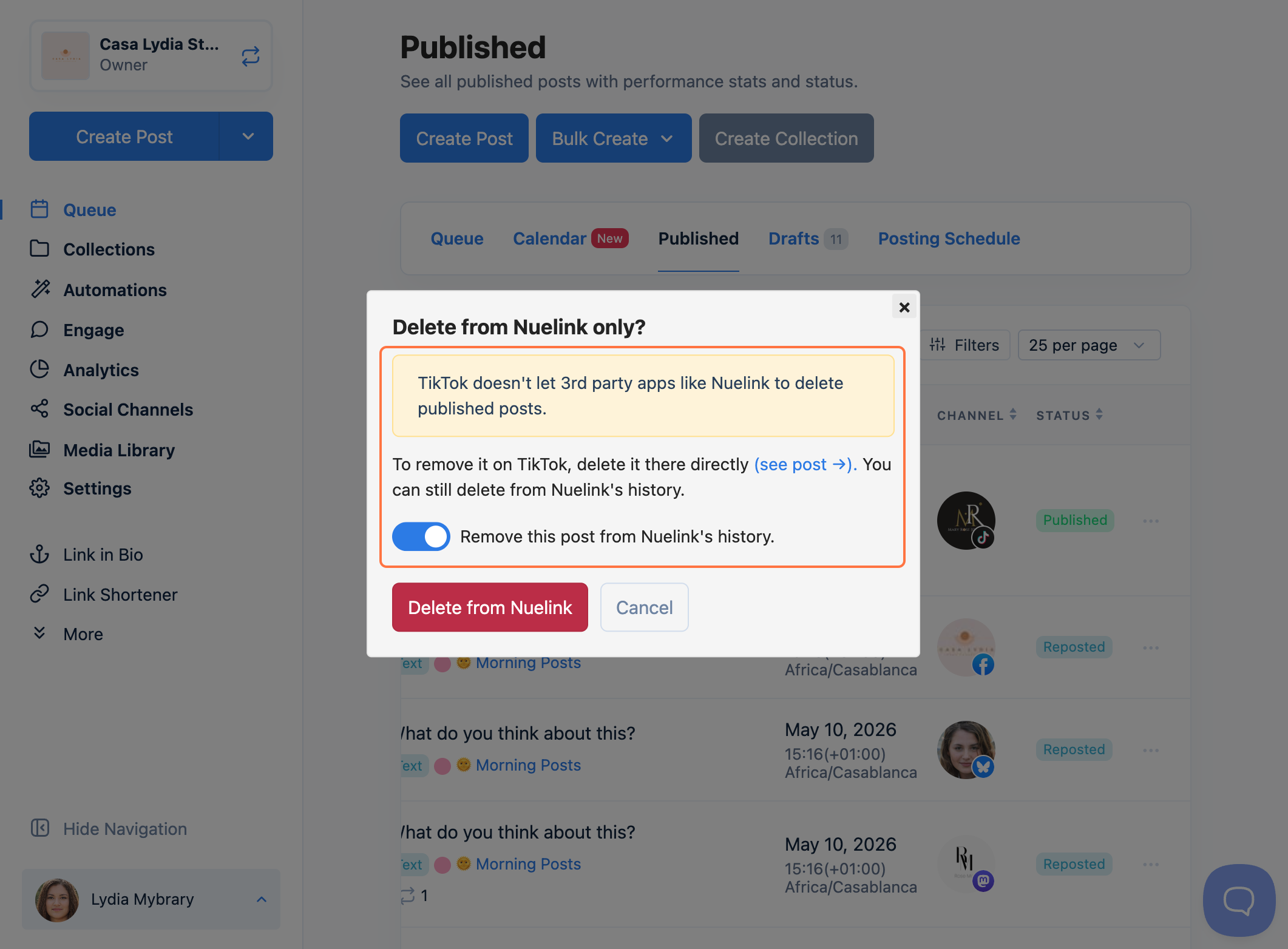
Step-by-Step Guide
- Log in to your Nuelink account and select the brand workspace that contains the post you want to delete.
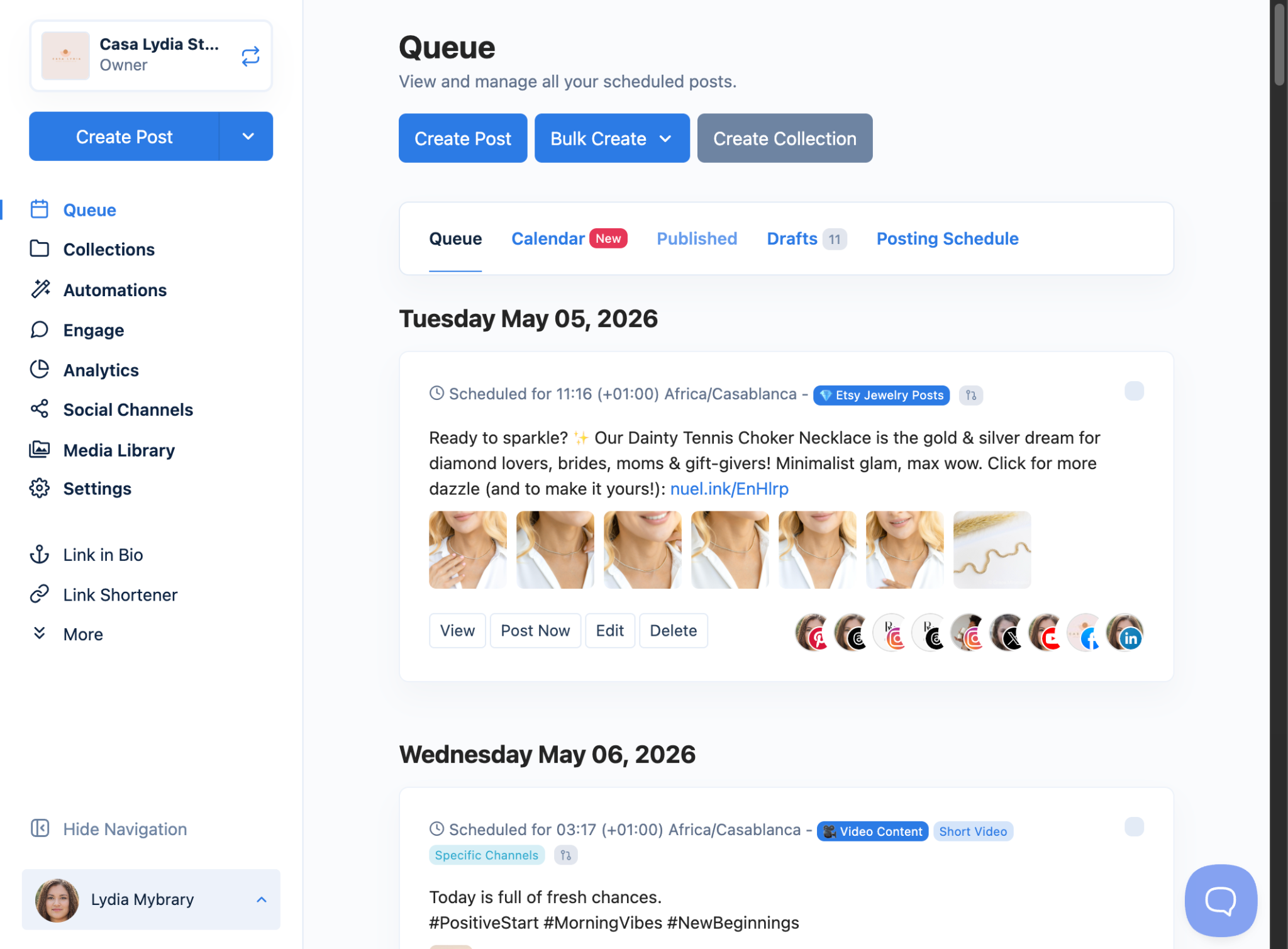
- Click the Published tab to view all posts that have already gone live.
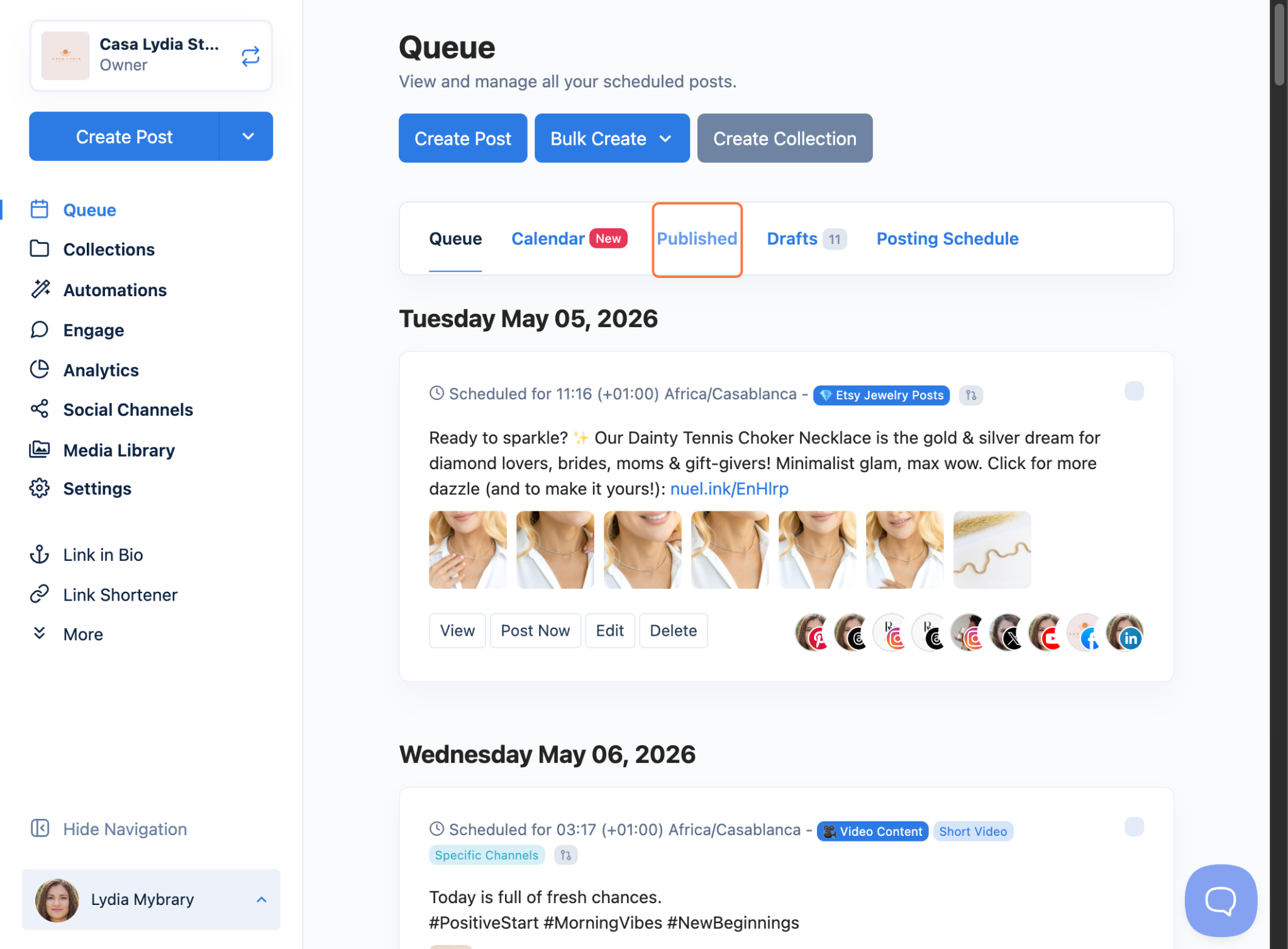
- Hover over the post you want to remove and click the three-dot menu (⋯) on the post card.

- Click Delete from the dropdown menu.
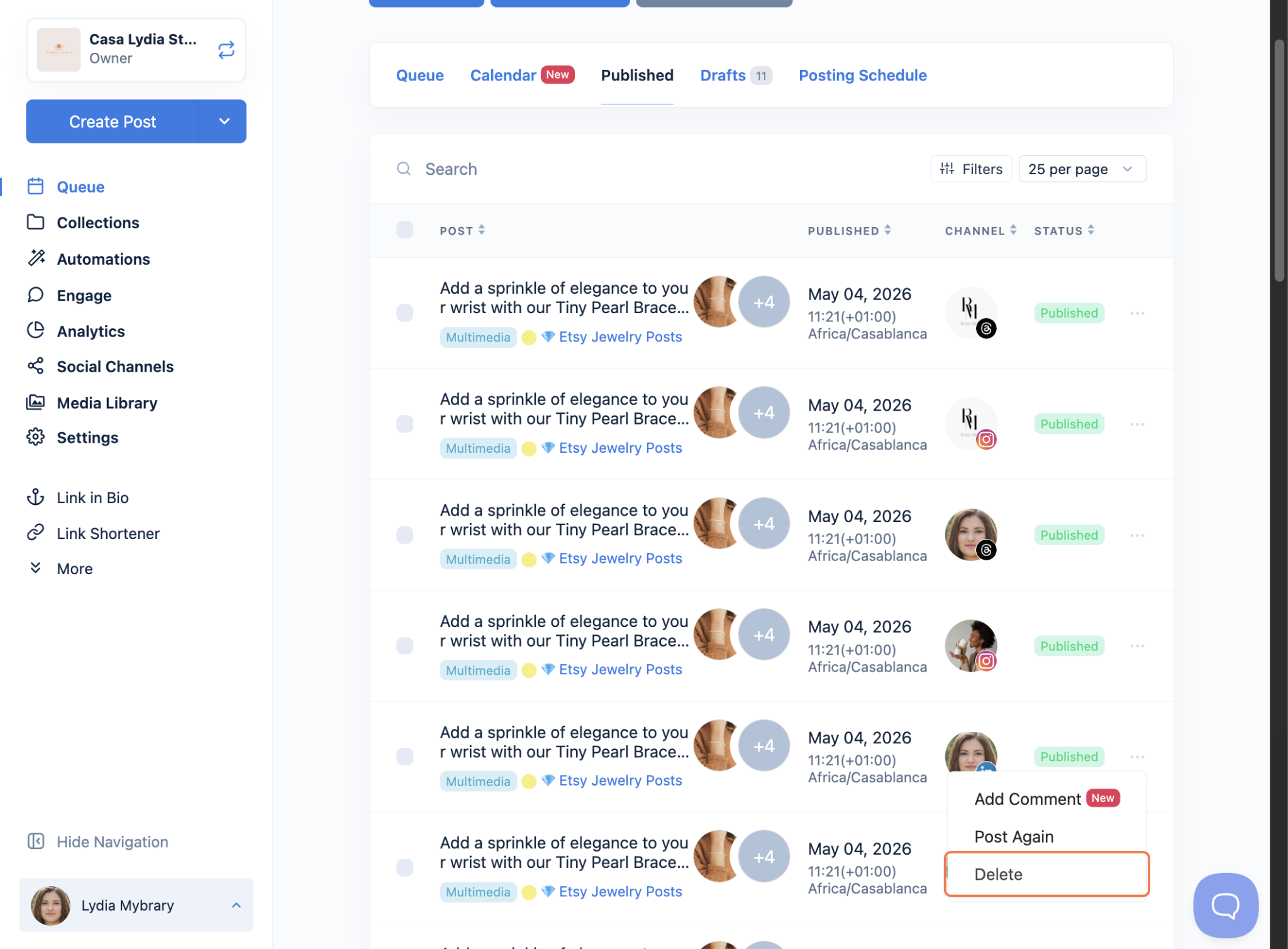
- Review the confirmation pop-up. Nuelink will tell you whether the post will be removed from the platform, too, or only from your Nuelink history.
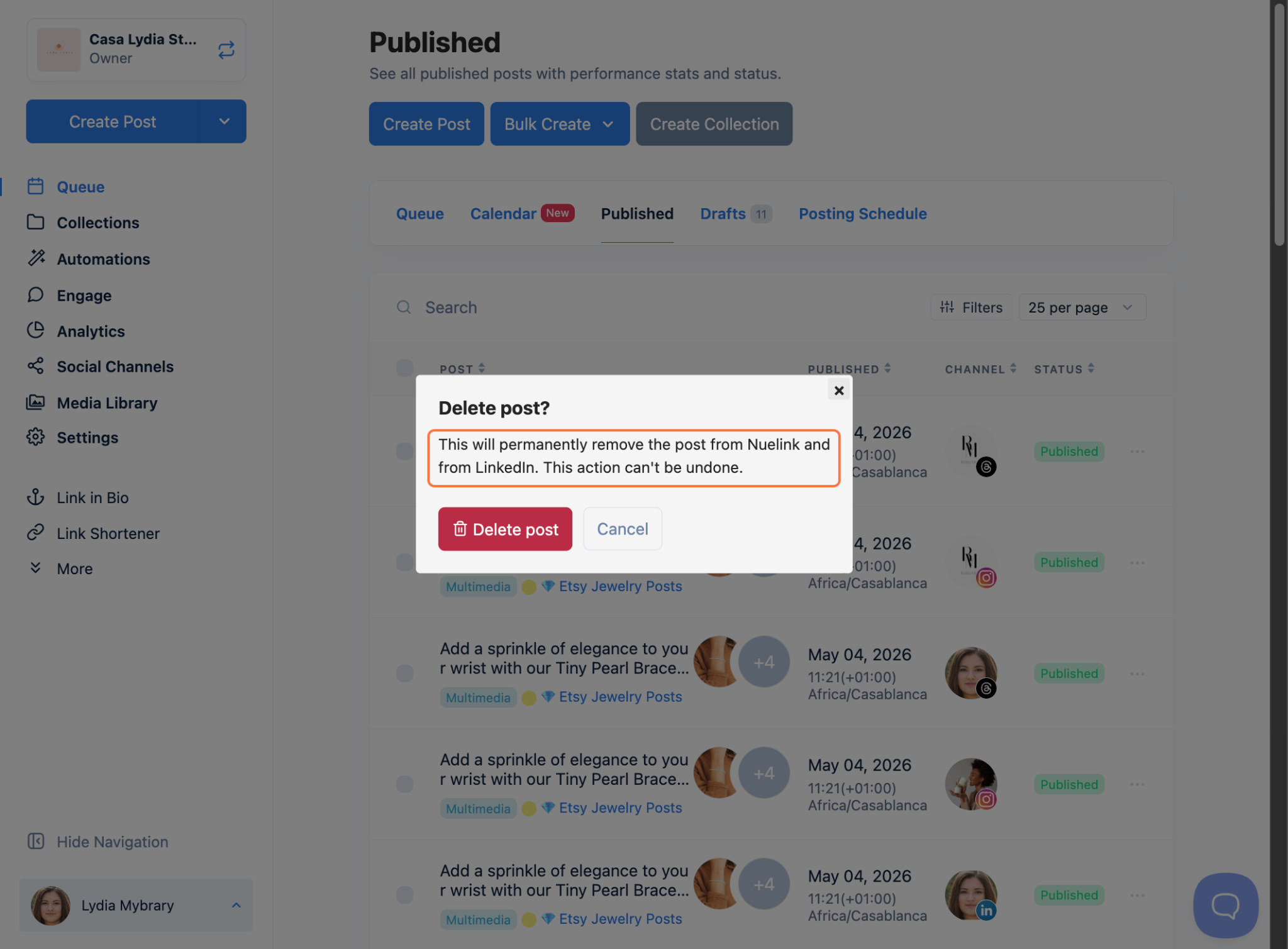
- If the platforms don't support deletion from the platform (Instagram, Threads, TikTok) you will get this pop-up with the message to delete from Nuelink history only.
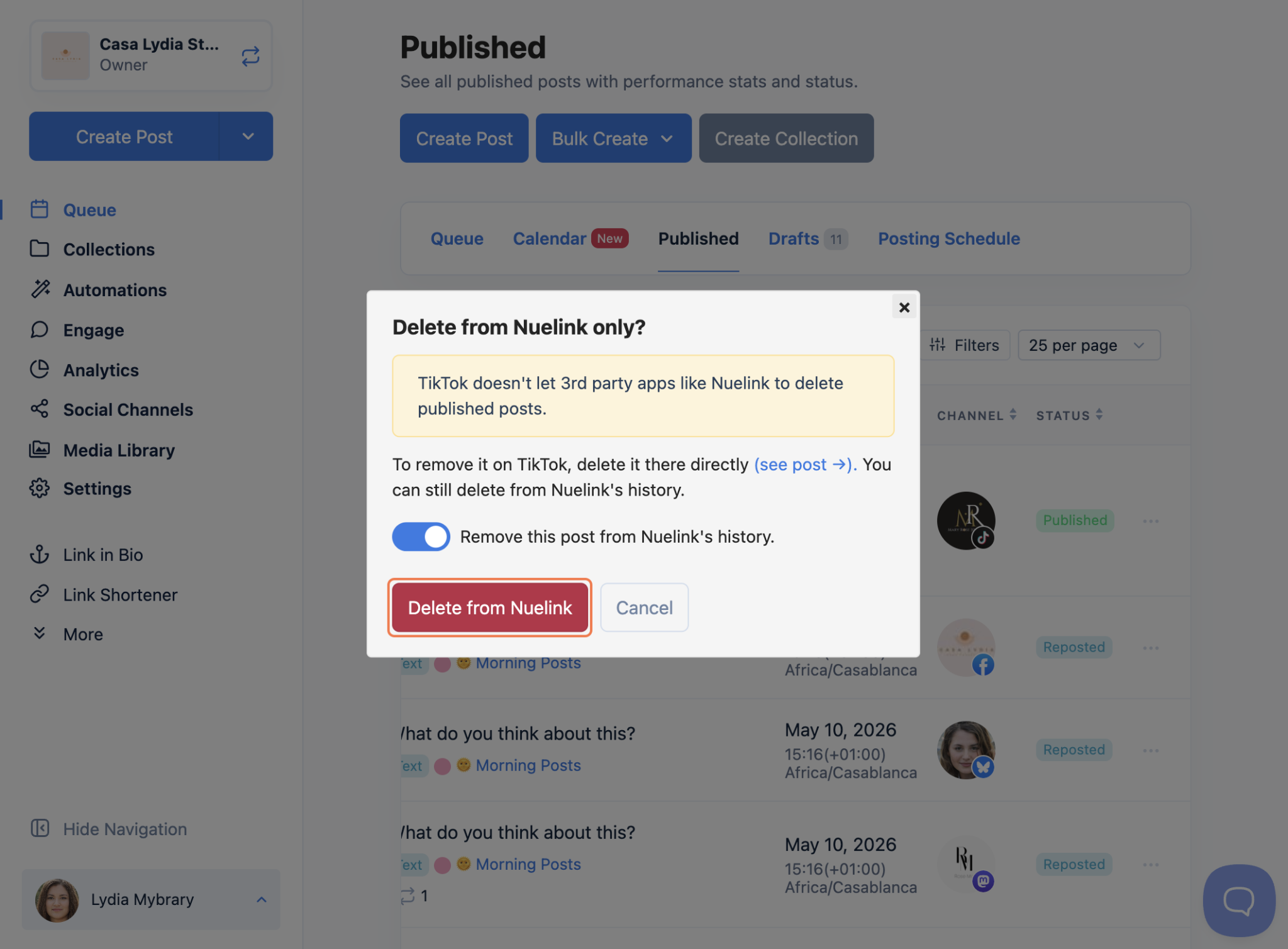
- Click Confirm Delete to finalize the action.
That's it! Your post has been removed. You're all set!

FAQs
Will deleting a post from Nuelink also remove it from the social platform?
It depends on the platform. For Facebook, LinkedIn, YouTube, X (Twitter), Pinterest, Telegram, Mastodon, and Bluesky, deletion is permanent on both Nuelink and the platform. For Instagram, Threads, and TikTok, the post is only removed from Nuelink's history. You'll need to delete it directly on the app for those platforms.
Can I undo a post deletion?
No. Once a post is deleted, it cannot be recovered, whether from Nuelink, the platform, or both. Always double-check before confirming.
Can I delete multiple posts at once?
Yes. Use the checkboxes next to each post in the Published tab to select several posts, then click Delete in the bulk action bar that appears.
Can I delete posts published before I started using Nuelink?
No. Nuelink can only manage posts that were published through Nuelink. Posts created directly on the platform must be deleted from the platform itself.
Troubleshooting
The Delete option is grayed out.
This usually means your channel has been disconnected. Go to Channels, reconnect the account, then return to the Published tab and try again.
I deleted an Instagram post from Nuelink, but it's still showing on Instagram.
This is expected. Instagram does not allow third-party apps to delete published posts. Open the Instagram app, find the post, and delete it there directly.
I get an error when trying to delete a post.
Make sure your channel connection is active and that you have permission to manage the account. If the error continues, disconnect and reconnect the channel, then try again.
I can't find the post I want to delete in the Published tab.
Check that you're in the correct brand workspace. Use the search bar or adjust the date filter to widen your view.